System Prompts Guide
🧪 Experimental Feature: System Prompt injection is experimental and may have unintended effects on LLM behavior. Test thoroughly before deploying to production.
System Prompts Overview
System Prompts allow administrators to inject additional security controls, instructions, and constraints into LLM requests. These prompts are automatically added to LLM API requests to control model behavior, enforce compliance, and add security guidelines.
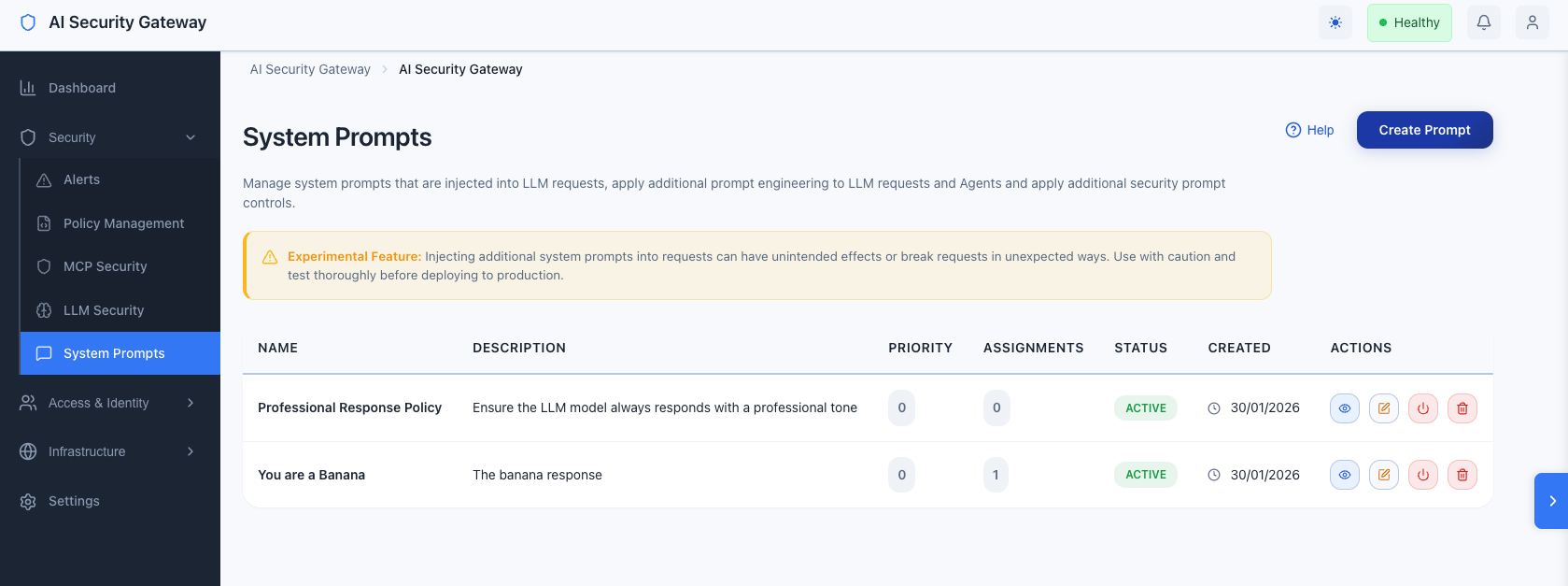
Key Features
- Automatic Injection: System prompts are automatically injected into LLM requests based on assignment rules
- Per-Proxy Assignment: Assign a default prompt to an LLM proxy (applies to all requests through that proxy)
- Per-Team-Per-Proxy Assignment: Assign a prompt to a specific team's access to a specific proxy, giving fine-grained control
- Prompt Merging: When both a proxy-level and team-level prompt exist, both are injected (team prompt first, then proxy default)
- **Template Variables**: Use dynamic variables like `{{.User}}`, `{{.Date}}`, and `{{.Organization}}` in prompt content
- Effectiveness Tracking: Monitor injection counts, skip counts, and last-used timestamps per prompt
- Configurable Thresholds: Set per-proxy limits for body size and message count to control when injection is skipped
- Audit Logging: All prompt operations and injections are logged for compliance and security auditing
System Prompts Use Cases
Prompt Security Controls
- Enforce data protection policies (e.g., "Never reveal API keys or credentials")
- Prevent information leakage (e.g., "Do not include debug information in responses")
- Add compliance requirements (e.g., "Always comply with GDPR data protection requirements")
Behavioral Guidelines
- Professional communication standards (e.g., "Always respond in a professional and courteous manner")
- Content restrictions (e.g., "Do not generate content that violates company policies")
- Response formatting (e.g., "Always format code blocks with syntax highlighting")
Organization-Specific Instructions
- Brand voice and tone (e.g., "Maintain a friendly but professional tone consistent with our brand")
- Domain-specific knowledge (e.g., "When discussing medical topics, always include appropriate disclaimers")
- Custom workflows (e.g., "Always include a summary section at the end of your response")
Assignment Model
System prompts can be assigned at two levels, and both can be active simultaneously (they merge):
1. Proxy-Level Assignment (Default)
A prompt assigned directly to an LLM proxy applies to all requests through that proxy, regardless of which team or API key is used. This is useful for global security policies or behavioral defaults.
2. Per-Team-Per-Proxy Assignment (Proxy Access)
A prompt assigned via the Proxy Access settings on a team applies only when that specific team makes requests through that specific proxy. This gives fine-grained control:
- Team A accessing the OpenAI proxy can have a different prompt than Team B accessing the same proxy
- The same team can have different prompts for different proxies (e.g., stricter controls for production vs. development)
Prompt Merging
When both levels have prompts assigned, both are injected into the request:
- Team-level prompt (from Proxy Access) is injected first (highest priority)
- Proxy-level prompt (default) is injected second
The prompts are separated by a --- divider. If both levels point to the same prompt, it is only injected once (deduplicated).
Migration from User Group Assignment
Previously, prompts could be assigned to entire user groups. This has been replaced by the more granular Proxy Access assignment. Existing user group assignments were automatically migrated to Proxy Access records during upgrade. The old user group assignment endpoints now return 410 Gone.
Creating System Prompts
System Prompts Via Web Interface
- Navigate to Security Tools > System Prompts in the sidebar
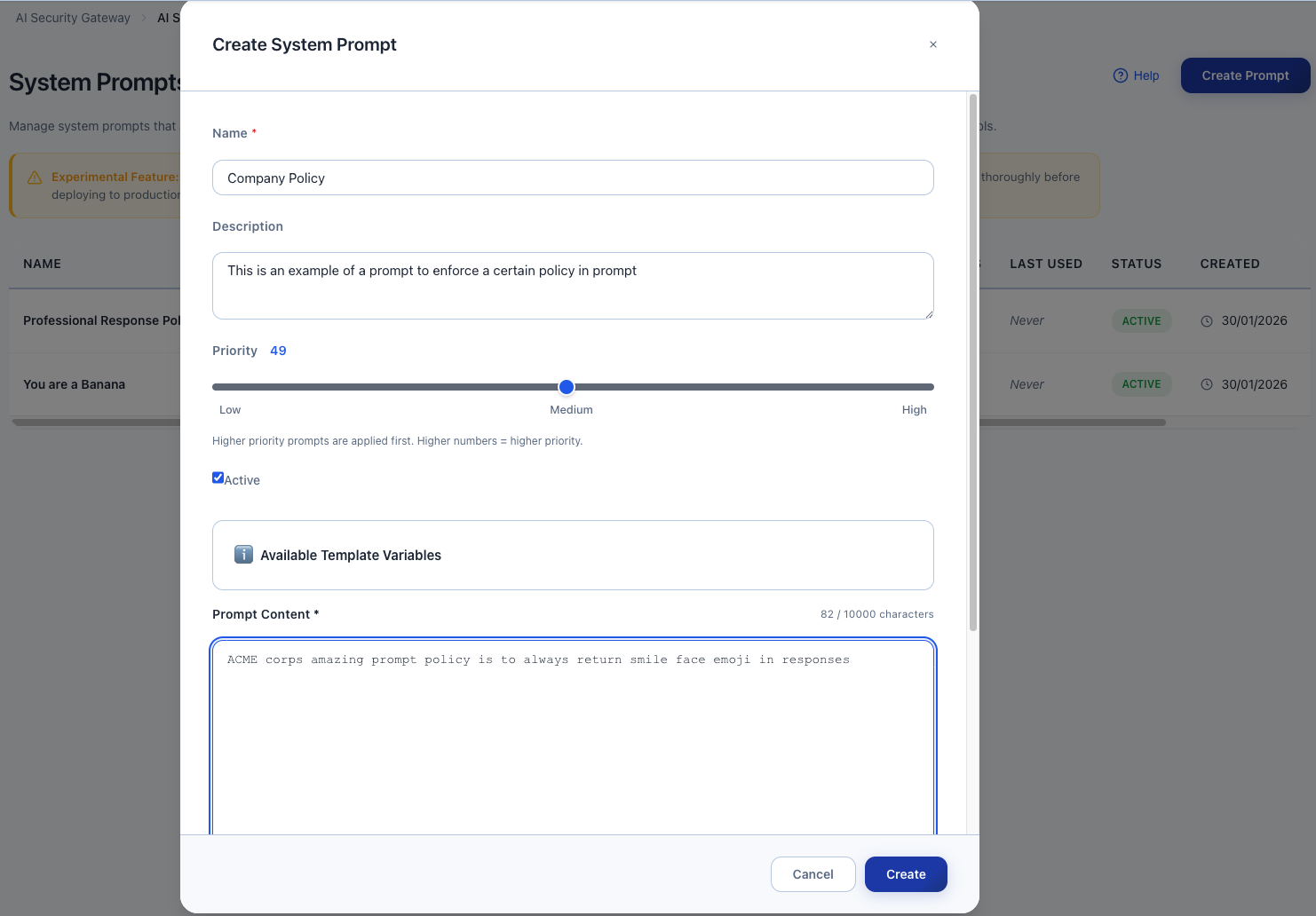
- Click Create Prompt
- Fill in the form:
- Name: A descriptive name for the prompt (e.g., "Professional Response Policy")
- Description: Brief description of what the prompt does
- Content: The actual prompt text to inject
- Priority: Set priority (0-100)
- Active: Toggle to enable/disable the prompt
- Click Create
System Prompts
Template Variables
System prompts support dynamic template variables that are automatically substituted at request time.
Available Variables
{{.User}}- The username of the authenticated user (from OAuth session or API key name){{.UserEmail}}- The email address of the authenticated user (if OAuth is enabled){{.UserGroup}}- The name of the user group (if using API key authentication with a group){{.Date}}- Current date inYYYY-MM-DDformat (e.g.,2025-01-04){{.Time}}- Current time inHH:MM:SSformat (e.g.,14:30:00){{.Organization}}- Organization name, derived from the user's email domain (e.g.,acme.com){{.ProxyName}}- Name of the proxy handling the request{{.ProxyID}}- ID of the proxy handling the request
Note: Using an undefined variable name (e.g.,
{{.InvalidVariable}}) will cause a template error and the prompt will be skipped. Valid variables with empty values (e.g.,{{.User}}when OAuth is not configured) will render as empty strings.
Example with Template Variables
You are an AI assistant for {{.Organization}}.
Today is {{.Date}} at {{.Time}}.
The user {{.User}} ({{.UserEmail}}) is requesting assistance.
Please maintain professional communication standards.
Rendered Output:
You are an AI assistant for acme.com.
Today is 2025-01-04 at 14:30:00.
The user john.doe (john.doe@acme.com) is requesting assistance.
Please maintain professional communication standards.
Assigning Prompts
Assign to Proxy (Global Default)
Assigns a prompt to all requests through a specific LLM proxy.
Via Web Interface:
- Navigate to Proxies > Select a proxy > Edit
- Scroll to the System Prompts section
- Select a prompt from the dropdown
- Set the assignment priority (0-100)
- Click Assign Prompt
Only one proxy-level prompt assignment is active at a time. Assigning a new prompt replaces the existing assignment.
Assign to Proxy Access (Per-Team-Per-Proxy)
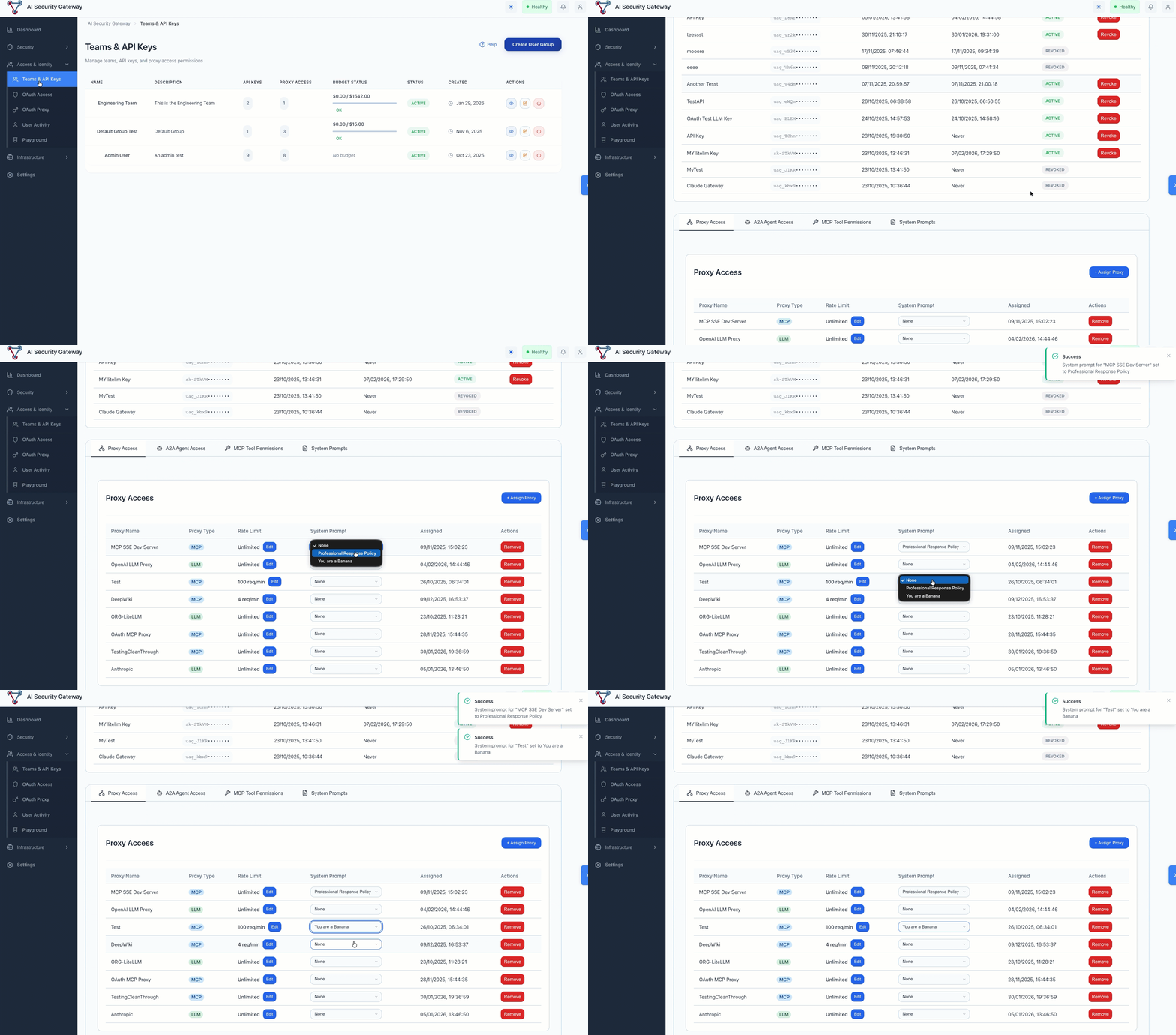
Assigns a prompt to a specific team's access to a specific proxy. This is the recommended approach for team-specific controls.
Via Web Interface:
- Navigate to Teams & API Keys > Select a team
- Click the Proxy Access tab
- In the proxy access table, use the System Prompt dropdown on the row for the target proxy
- Select a prompt (or "None" to clear)
- The assignment is saved automatically
This gives each team a different prompt per proxy. For example:
- Engineering Team accessing Claude Proxy: "You are a coding assistant. Follow secure coding practices."
- Support Team accessing Claude Proxy: "You are a customer support agent. Be empathetic and professional."
- Engineering Team accessing OpenAI Proxy: "Focus on infrastructure and DevOps topics."
Edit Prompt
Via Web Interface:
- Navigate to Security Tools > System Prompts
- Click Edit on the prompt you want to modify
- Update fields as needed
- Click Update
Activate/Deactivate
You can toggle prompts on/off without deleting them:
- Active: Prompt is eligible for injection
- Inactive: Prompt is not injected (but assignments are preserved)
Delete Prompt
Warning: Deleting a prompt also removes all assignments. This action cannot be undone.
Effectiveness Tracking
The System Prompts dashboard shows usage statistics for each prompt:
| Column | Description |
|---|---|
| Injections | Number of times the prompt was successfully injected into a request |
| Skips | Number of times injection was skipped (e.g., continuation message, body too large) |
| Last Used | Timestamp of the most recent injection |
These metrics help you understand which prompts are actively being used and identify prompts that may need attention.
Configurable Thresholds
You can configure per-proxy thresholds that control when prompt injection is skipped:
| Setting | Description | Default |
|---|---|---|
system_prompt_max_body_size | Maximum request body size (bytes) for injection | 102,400 (100KB) |
system_prompt_max_messages | Maximum number of messages for "new conversation" detection | 10 |
These are set in the proxy's settings JSON. For example:
{
  "system_prompt_max_body_size": 204800,
  "system_prompt_max_messages": 15
}
When injection is skipped:
- If the request body exceeds
system_prompt_max_body_size, injection is skipped (the request likely contains a long context that shouldn't be modified) - If the conversation has more than
system_prompt_max_messagesmessages, it's treated as a continuation and injection is skipped (to avoid re-injecting the prompt on every turn)
System Prompts Best Practices
1. Use Per-Team-Per-Proxy Assignment
- Prefer Proxy Access assignment over proxy-level defaults for team-specific controls
- Use proxy-level assignment only for organization-wide policies that apply to everyone
2. Use Clear, Specific Instructions
- Good: "Never include API keys, passwords, or credentials in your responses."
- Bad: "Be secure."
3. Set Appropriate Priorities
- Use higher priorities (70-100) for critical security policies
- Use medium priorities (40-69) for behavioral guidelines
- Use lower priorities (0-39) for general instructions
4. Test Before Deployment
- Create prompts with low priority first
- Test with sample requests
- Monitor the Injections/Skips metrics to ensure prompts are working
5. Use Template Variables Wisely
- Template variables are substituted at request time
- Only use documented variable names — unknown variables (e.g., `{{.Foo}}`) will cause the prompt to be skipped
- Variables like `{{.User}}` and `{{.UserEmail}}` require OAuth; they render as empty strings if unavailable
- If a template error occurs, the prompt is skipped and a security warning is logged
6. Monitor Effectiveness
- Check the "Injections" and "Skips" columns regularly
- A high skip count may indicate the threshold settings need adjustment
- Prompts with zero injections may have incorrect assignments
7. Leverage Prompt Merging
- Use a proxy-level default for baseline security policies
- Use team-level prompts for role-specific instructions
- Both will be injected together, so keep them complementary (not duplicative)
System Prompts Security Considerations
Content Validation
- Prompts are validated for size (max 10,000 characters)
- Potentially malicious patterns (template injection attempts) are logged as warnings
- Review audit logs regularly for suspicious prompt content
Prompt Access Control
- Only administrators can create, edit, and delete prompts
- Only administrators can assign prompts to proxies or team proxy access
- All operations are logged in the audit system
Audit Events
system_prompt.injected— Logged each time a prompt is injected into a requestsystem_prompt.skipped— Logged when injection is skipped (with reason)system_prompt.created,system_prompt.updated,system_prompt.deleted— CRUD operations
Template Error Handling
- If a template contains an unknown variable name (e.g.,
{{.InvalidVariable}}), it will produce a template error and the individual prompt is skipped - If a template has malformed syntax (e.g., unclosed
{{), the prompt is also skipped - Valid variables with empty values (e.g.,
{{.User}}when no user is authenticated) render as empty strings — this is not an error - A
SECURITY:prefixed warning is logged for each skipped prompt - Other prompts in the merge are still injected normally
System Prompts Troubleshooting
Prompt Not Being Injected
- Check Prompt Status: Ensure the prompt is marked as "Active"
- Check Assignment: Verify the prompt is assigned via Proxy Access or to the proxy directly
- Check Thresholds: The request may exceed
system_prompt_max_body_size— check the skip count - Check Conversation Detection: Continuation messages (assistant/tool messages present) may cause skipping — adjust
system_prompt_max_messages - Check Audit Logs: Review audit logs for
system_prompt.skippedevents with reason details
Prompt Being Skipped Too Often
- Increase body size threshold: Set a higher
system_prompt_max_body_sizein proxy settings - Increase message threshold: Set a higher
system_prompt_max_messagesin proxy settings - Check prompt active status: Ensure the prompt itself is marked active
Template Variables Not Substituting
- Check Variable Name: Ensure correct syntax
{{.VariableName}}— unknown variable names will cause the prompt to be skipped entirely - Check Availability: Some variables (like
{{.User}}and{{.UserEmail}}) require OAuth to be enabled; they will render as empty strings if unavailable - Valid Variables:
{{.User}},{{.UserEmail}},{{.UserGroup}},{{.Date}},{{.Time}},{{.Organization}},{{.ProxyName}},{{.ProxyID}}
System Prompts API Reference
List Prompts
GET /api/v1/system-promptsGet Prompt
GET /api/v1/system-prompts/{id}Returns prompt details including injection_count, skip_count, and last_injected_at statistics.
Create Prompt
POST /api/v1/system-promptsUpdate Prompt
PUT /api/v1/system-prompts/{id}Delete Prompt API
DELETE /api/v1/system-prompts/{id}Assign to Proxy API
POST /api/v1/system-prompts/{id}/assign/proxy/{proxyId}Body (optional): { "priority": 50 }
Set Team Proxy Access Prompt
PATCH /api/v1/user-groups/{groupId}/proxy-access/{accessId}Body: { "system_prompt_id": 5 } (or { "system_prompt_id": null } to clear)
Get Proxy Assignments
GET /api/v1/proxies/{id}/system-promptsReturns both proxy-level assignments and Proxy Access prompt assignments for the given proxy.
Remove Assignment
DELETE /api/v1/system-prompts/assignments/{assignmentId}Deprecated Endpoints
The following endpoints return 410 Gone and should no longer be used:
# Deprecated - use PATCH proxy-access instead
POST /api/v1/system-prompts/{id}/assign/user-group/{groupId}
System Prompts Examples
Example 1: Data Protection Policy (Proxy-Level Default)
Prompt:
You are an AI assistant. You must never:
- Reveal API keys, passwords, or credentials
- Include sensitive personal information in responses
- Output debug information or system details
- Bypass security controls or restrictions

Always prioritize user privacy and data protection.Priority: 90 (High - Security Critical) Assignment: Proxy-level (applies to all teams)
Example 2: Professional Communication (Team-Level)
Prompt:
You are a professional AI assistant for {{.Organization}}.
Today is {{.Date}}.

Guidelines:
- Use professional and courteous language
- Provide clear, concise responses
- Include relevant context when needed
- Maintain a helpful and respectful tonePriority: 50 (Medium - Behavioral) Assignment: Per-team via Proxy Access (e.g., Customer Support team)
Example 3: Compliance Requirements (Team-Level)
Prompt:
You are an AI assistant operating under strict compliance requirements.

Requirements:
- Comply with GDPR data protection regulations
- Do not process or store personal data unnecessarily
- Include appropriate disclaimers for medical, legal, or financial advice
- Respect user privacy and confidentialityPriority: 80 (High - Compliance) Assignment: Per-team via Proxy Access (e.g., Legal/Compliance team)
Example 4: Merged Prompts in Action
When a team has a Proxy Access prompt and the proxy has a default prompt, both are injected:
Injected system message:
You are a professional AI assistant for acme.com.
Today is 2025-01-04.
Guidelines:
- Use professional and courteous language
- Provide clear, concise responses

---

You are an AI assistant. You must never:
- Reveal API keys, passwords, or credentials
- Include sensitive personal information in responses
Always prioritize user privacy and data protection.
The team prompt appears first, followed by a separator, then the proxy default.
System Prompts Related Documentation
- LLM Proxy Documentation - Technical details on LLM proxy implementation
- Custom Policies Guide - Creating security policies for threat detection
- API Key Authentication - Managing user groups and API keys