Setting Up OAuth Authentication for MCP Clients
✅ Automatic OAuth with Dynamic Client Registration
MCP clients (Cursor, Claude Desktop, etc.) automatically discover OAuth requirements and register themselves via Dynamic Client Registration (DCR). No manual configuration needed!
This guide explains how MCP clients automatically authenticate with OAuth-enabled MCP proxies through the AI Security Gateway.
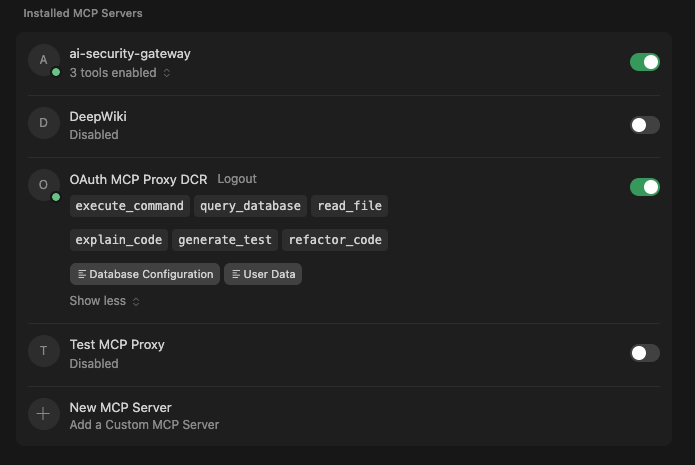
You can apply this same process to most MCP clients that support RFC 8414!
Supported MCP Clients Overview
| Client | RFC 8414 Support | DCR Support | Status |
|---|---|---|---|
| Cursor IDE | ✅ Yes | ✅ Yes | Fully Supported |
| Claude Desktop | ✅ Yes | ✅ Yes | Fully Supported |
| VS Code + Copilot | ✅ Yes | ✅ Yes | Fully Supported |
| Custom MCP Clients | ✅ Yes | ✅ Yes | RFC-compliant |
The AI Security Gateway's OAuth Proxy feature supports two modes:
- Upstream Mode: Gateway forwards client tokens directly to upstream OAuth providers
- Gateway Mode: Gateway acts as OAuth server and manages tokens for clients
Both modes support Dynamic Client Registration (RFC 7591), enabling Cursor to automatically:
- Discover OAuth requirements
- Register itself as an OAuth client
- Complete the OAuth flow
- Authenticate all requests
Quick Start (Automatic Setup)
Cursor IDE Prerequisites
- ✅ MCP proxy configured with OAuth Proxy enabled
- ✅ Gateway running and accessible
- ✅ Cursor IDE with MCP support
Setup Steps
Configure Cursor MCP: Update your
~/.cursor/mcp.jsonfile:json{ "mcpServers": { "my-server": { "url": "http://localhost:9050/mcp" } } }Restart Cursor: After updating
mcp.json, restart Cursor. (Not always a requirement)Authenticate Automatically:
- Cursor automatically detects OAuth is required (via
/.well-known/oauth-protected-resource) - Cursor registers itself via Dynamic Client Registration (
/api/v1/oauth-proxy/{id}/register) - Cursor displays "Connect" button in the UI (Needs Authentication)
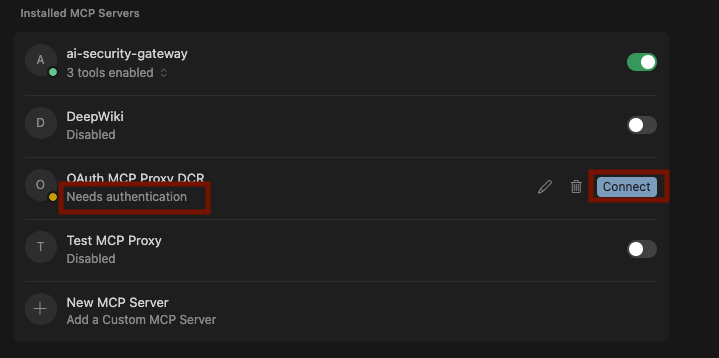
- Click "Connect" to complete OAuth flow in browser
- Click "Needs authentication" is the connect button does not work
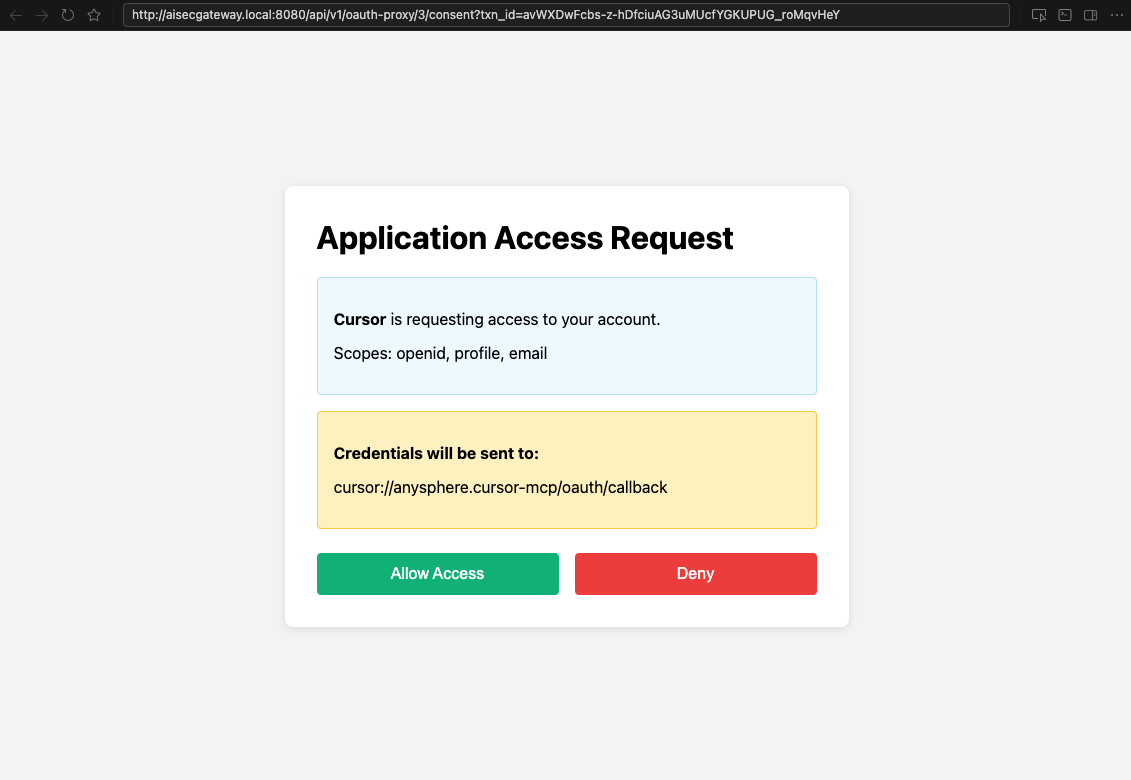
- Cursor automatically receives and stores authentication token
- Cursor automatically detects OAuth is required (via
That's it! No manual token configuration needed.
Cursor IDE How It Works
Discovery Phase
- OAuth Detection: Cursor queries
/.well-known/oauth-protected-resourceon the proxy - Metadata Retrieval: Cursor queries
/.well-known/oauth-authorization-serverfor OAuth endpoints - Client Registration: Cursor POSTs to
/api/v1/oauth-proxy/{id}/register(DCR)- Gateway generates
client_idandclient_secret - Cursor stores credentials locally
- Gateway generates
Authorization Phase
- PKCE Generation: Cursor generates PKCE code verifier and challenge
- Authorization Request: Cursor opens browser to
/api/v1/oauth-proxy/{id}/authorize - User Authentication: User completes OAuth flow with upstream provider
- Token Exchange: Cursor exchanges authorization code for access token
- Authenticated Access: Cursor uses token for all MCP requests
Mode-Specific Behavior
Upstream Mode:
- Cursor receives tokens directly from upstream provider (via Gateway proxy)
- Tokens are provider-issued (e.g., Google access tokens)
- Gateway forwards requests without modifying tokens
Gateway Mode:
- Cursor receives JWT access tokens issued by Gateway
- Gateway stores upstream provider tokens securely
- Gateway automatically injects upstream tokens when proxying to MCP server
For technical details, see OAuth Proxy Architecture.
Manual Configuration (Fallback)
If automatic discovery doesn't work, you can manually configure OAuth.
Option 1: Use API Key
For machine access or automation:
{
  "mcpServers": {
    "my-server": {
      "url": "http://localhost:9050/mcp",
      "headers": {
        "X-API-Key": "YOUR_API_KEY"
      }
    }
  }
}
API keys can be created in the Gateway Admin UI under API Keys section.
Cursor Configuration Examples
Example 1: Development with Upstream Mode
{
  "mcpServers": {
    "dev-server": {
      "url": "http://localhost:9050/mcp",
      "transport": "sse"
    }
  }
}
Proxy Configuration:
oauth_proxy_enabled: trueoauth_proxy_mode: "upstream"oauth_proxy_provider_id: 1(e.g., Google OAuth)
Behavior:
- Cursor auto-discovers OAuth requirements
- Cursor registers via DCR
- Cursor receives tokens from Google (via Gateway)
- Fast, direct token exchange
Example 2: Production with Gateway Mode
{
  "mcpServers": {
    "prod-server": {
      "url": "https://gateway.example.com/mcp",
      "transport": "sse"
    }
  }
}
Proxy Configuration:
oauth_proxy_enabled: trueoauth_proxy_mode: "gateway"oauth_proxy_provider_id: 2(e.g., Azure AD)oauth_proxy_require_consent: true
Behavior:
- Cursor auto-discovers OAuth requirements
- Cursor registers via DCR
- User approves consent screen
- Cursor receives JWT from Gateway
- Gateway manages Azure AD tokens automatically
Cursor IDE Troubleshooting
Automatic Discovery Not Working
If Cursor doesn't show the "Connect" button:
Verify Well-Known Endpoints:
bash# Should return OAuth metadata curl http://localhost:9050/.well-known/oauth-protected-resource | jq . # Should include authorization_endpoint, token_endpoint, registration_endpoint curl http://localhost:9050/.well-known/oauth-authorization-server | jq .Verify OAuth Proxy Configuration:
- Check proxy has
oauth_proxy_enabled: true - Check
oauth_proxy_provider_idis set to valid provider - Check
oauth_proxy_modeis set to "upstream" or "gateway" - Restart proxy after configuration changes
- Check proxy has
Check Gateway Logs:
bashtail -f logs/unified-admin.log | grep "oauth-proxy"Look for DCR registration requests and authorization attempts.
Test DCR Manually:
bashcurl -X POST http://localhost:8080/api/v1/oauth-proxy/9/register \ -H "Content-Type: application/json" \ -d '{ "redirect_uris": ["http://localhost:8888/callback"], "client_name": "Test Client" }'Should return
client_idandclient_secret.
Loading Tools Hangs Forever
If Cursor shows "Loading tools" indefinitely:
Check Token Validity:
- In Gateway mode: Verify JWT token is not expired
- In Upstream mode: Verify provider token is not expired
Check Hybrid Authentication:
- Gateway should bypass its own auth when OAuth Proxy is enabled
- Check logs for "HybridProxyAuth: Using OAuth Proxy token validator"
Verify Proxy is Running:
bashcurl http://localhost:9050/health
401 Unauthorized Errors
Symptom: Requests return 401 even with valid token.
Solutions:
Check Token Format:
- Should be:
Authorization: Bearer <token> - No extra spaces or newlines
- Should be:
Verify Token Type:
- Gateway mode: Use JWT token from
/api/v1/oauth-proxy/{id}/token - Upstream mode: Use provider-issued token
- Session tokens: Use tokens from Gateway session
- Gateway mode: Use JWT token from
Check Token Validator:
bash# Check Gateway logs for token validation grep "OAuth Proxy token validation" logs/unified-admin.log
OAuth Flow Fails
Symptom: Browser redirect fails or shows error page.
Solutions:
Check Redirect URIs:
- Cursor's redirect URI must match registered URI patterns
- Common patterns:
cursor://*/oauth/*/callback - Check proxy config:
oauth_proxy_allowed_redirect_uris
Check PKCE Validation:
- In Gateway mode, both PKCE flows must succeed
- Check logs for "Invalid code verifier" errors
- Ensure client sends correct
code_verifierin token request
Check Provider Configuration:
- Verify OAuth provider credentials are correct
- Verify provider's redirect URI includes Gateway callback
- Example:
http://localhost:8080/api/v1/oauth/callback
Connection Refused
Symptom: Cannot connect to proxy or Gateway.
Solutions:
Verify Services are Running:
bash# Check Gateway curl http://localhost:8080/api/v1/health # Check Proxy curl http://localhost:9050/healthCheck Port Configuration:
- Gateway default:
8080 - Proxy default:
9050(or configured port) - Verify firewall allows connections
- Gateway default:
Check Network Settings:
- For remote Gateway: Ensure it's accessible from client machine
- For localhost: Verify
127.0.0.1vslocalhostresolution
Tokens Expire Too Quickly
Gateway Mode:
- JWT tokens expire based on upstream provider's token lifetime
- Default: 1 hour (3600 seconds)
- Gateway automatically refreshes if refresh token available
Upstream Mode:
- Client receives provider tokens directly
- Client responsible for token refresh
Cursor IDE Advanced Configuration
Custom Redirect URI Patterns
Configure allowed redirect URI patterns in proxy settings:
{
  "oauth_proxy_allowed_redirect_uris": [
    "cursor://*/oauth/*/callback",
    "http://localhost:*/callback",
    "vscode://*/oauth/callback"
  ]
}
Consent Screen Customization
Enable/disable consent screen per proxy:
{
  "oauth_proxy_require_consent": true
}
When enabled, users must approve each OAuth flow, providing:
- Requested scopes visibility
- Client application details
- Option to deny access
Cursor IDE Rate Limiting
DCR and token endpoints are rate-limited by default:
- 60 requests per minute per IP address
- Returns
429 Too Many Requestswhen exceeded Retry-Afterheader indicates wait time
Claude Desktop Configuration
Claude Desktop follows the same OAuth discovery and DCR process as Cursor.
Claude Desktop Configuration File
macOS: ~/Library/Application Support/Claude/claude_desktop_config.json
Windows: %APPDATA%\Claude\claude_desktop_config.json
Example 1: Basic OAuth Configuration
{
  "mcpServers": {
    "secure-mcp": {
      "url": "http://localhost:9050/mcp"
    }
  }
}
After saving the config, restart Claude Desktop. It will:
- Auto-discover OAuth requirements via
/.well-known/oauth-protected-resource - Register via DCR at
/api/v1/oauth-proxy/{id}/register - Display "Connect" or "Authenticate" prompt
- Complete OAuth flow in browser
Example 2: Production Configuration
{
  "mcpServers": {
    "production-mcp": {
      "url": "https://mcp.company.com:9050/mcp",
      "transport": "sse"
    }
  }
}
Example 3: Using API Key (Non-OAuth)
For machine access where interactive OAuth isn't suitable:
{
  "mcpServers": {
    "machine-access": {
      "url": "http://localhost:9050/mcp",
      "headers": {
        "X-API-Key": "uag_your_api_key_here"
      }
    }
  }
}
Connecting to Built-in Gateway MCP Servers
The AI Security Gateway includes built-in MCP servers that are separate from the OAuth-protected proxy endpoints described above. These built-in servers provide direct access to gateway management and security features:
- MCP Discovery Server (
/api/v1/mcp) — List and manage MCP proxies via MCP protocol - Skill Security Server (
/api/v1/mcp/skill-security) — Analyze skills for security risks, check approval status, and report suspicious activity
These endpoints use the MCP Streamable HTTP transport (GET/POST/DELETE) and do not require OAuth authentication.
Cursor / Claude Desktop / Claude Code
Cursor, Claude Desktop, and Claude Code support the url transport natively:
{
  "mcpServers": {
    "ai-security-gateway": {
      "url": "http://localhost:8080/api/v1/mcp"
    },
    "skill-security": {
      "url": "http://localhost:8080/api/v1/mcp/skill-security"
    }
  }
}
Agent Zero and Other Python-based MCP Clients
Some MCP clients (such as Agent Zero) require the type field to be explicitly set to streamable-http. Without this, the client may not know which transport to use and fail to connect.
If the gateway is running on the host machine and the MCP client is running inside Docker, use host.docker.internal instead of localhost:
{
  "mcpServers": {
    "ai-security-gateway": {
      "description": "Use this MCP to list AI Security Gateway proxies",
      "url": "http://host.docker.internal:8080/api/v1/mcp",
      "type": "streamable-http"
    },
    "skill-security": {
      "description": "Use this MCP to use the Security Skills hub",
      "url": "http://host.docker.internal:8080/api/v1/mcp/skill-security",
      "type": "streamable-http"
    }
  }
}
Verifying Connectivity
You can verify the MCP endpoints are reachable before configuring your client:
# Health check (GET)
curl http://localhost:8080/api/v1/health

# Test MCP Discovery endpoint (POST)
curl -X POST http://localhost:8080/api/v1/mcp \
  -H "Content-Type: application/json" \
  -d '{"jsonrpc":"2.0","method":"initialize","id":1}'

# Test Skill Security endpoint (POST)
curl -X POST http://localhost:8080/api/v1/mcp/skill-security \
  -H "Content-Type: application/json" \
  -d '{"jsonrpc":"2.0","method":"initialize","id":1}'

# From inside Docker containers, replace localhost with host.docker.internal
curl -X POST http://host.docker.internal:8080/api/v1/mcp/skill-security \
  -H "Content-Type: application/json" \
  -d '{"jsonrpc":"2.0","method":"initialize","id":1}'
Both endpoints should return a JSON-RPC response with protocolVersion and serverInfo.
Troubleshooting Built-in MCP Servers
| Issue | Cause | Fix |
|---|---|---|
404 Not Found | Wrong URL path or GET-only client | Verify the exact URL path and ensure client uses Streamable HTTP transport |
Connection refused | Gateway not running | Start the gateway: ./build/unified-admin |
Connection refused (Docker) | Wrong hostname | Use host.docker.internal instead of localhost from Docker containers |
ValueError: Command not specified | Client using stdio transport | Switch to url or streamable-http transport type |
| Client connects but no tools | Wrong endpoint | /api/v1/mcp is for proxy discovery; /api/v1/mcp/skill-security is for skill analysis tools |
Support
For issues or questions:
- Check Gateway logs:
tail -f logs/unified-admin.log - Enable debug logging: Set
LOG_LEVEL=debugenvironment variable - Test endpoints manually using curl examples above
- Review related documentation for detailed troubleshooting
Summary
✅ Automatic OAuth with DCR - No manual configuration needed
✅ Dual Mode Support - Choose Upstream or Gateway mode
✅ PKCE Security - RFC 7636 compliant
✅ Multi-Provider - Google, GitHub, Azure AD, Okta, etc.
✅ Hybrid Authentication - OAuth tokens AND API keys work together
✅ Multi-Client Support - Cursor, Claude Desktop, VS Code, custom clients
The OAuth Proxy with Dynamic Client Registration provides zero-configuration OAuth authentication for MCP clients, with flexible deployment options for both development and production environments.