Admin Quick Start Guide
Quick Start Table of Contents
- Introduction
- Prerequisites
- Initial Quick Setup
- Common Configuration Recipes
- OAuth Integration Setup
- Security Hardening Checklist
- Monitoring & Maintenance
- Troubleshooting Quick Reference
Quick Start Introduction
This guide provides a streamlined path to get your AI Security Gateway up and running.
Estimated Setup Time: 30-45 minutes for basic deployment, 2-3 hours for full setup.
Quick Start Prerequisites
Quick Start System Requirements
Hardware:
- CPU: 2+ cores (4+ recommended for bigger deployments)
- RAM: 4GB minimum (8GB+ recommended)
- Disk: 10GB minimum (50GB+ for logs and database)
Software:
- Go: 1.21+ (for building from source only)
- Node.js: 20.19+ or 22.12+ (for frontend development only)
- SQLite: 3.35+ (included with pre-built releases)
- Git: 2.30+ (for source installation only)
Network:
- Inbound: Port 8080 (API server), custom ports for proxies (e.g., 8081-8090)
- Outbound: Ports 443 (OAuth providers, MCP/LLM targets), 25/587 (SMTP)
Initial Quick Setup
Step 1: First Launch & Admin Account
You can skip this STEP if you have already run the installation scripts or manually run
# Start the server for first-time setup
./build/unified-admin

# Expected output:
#  [INFO] Database initialized at data/unified.db
#  [INFO] Admin user created: admin@localhost (password: <generated>)
#  [INFO] Web interface: http://localhost:8080
#  [INFO] API server listening on :8080
Action Required:
- Copy the auto-generated admin password from the logs
- Open browser to
http://localhost:8080 - Login with
admin@localhostand the generated password - Change the admin password immediately (Settings → Admin Users → Change Password)
Step 2: Create User Groups & Teams
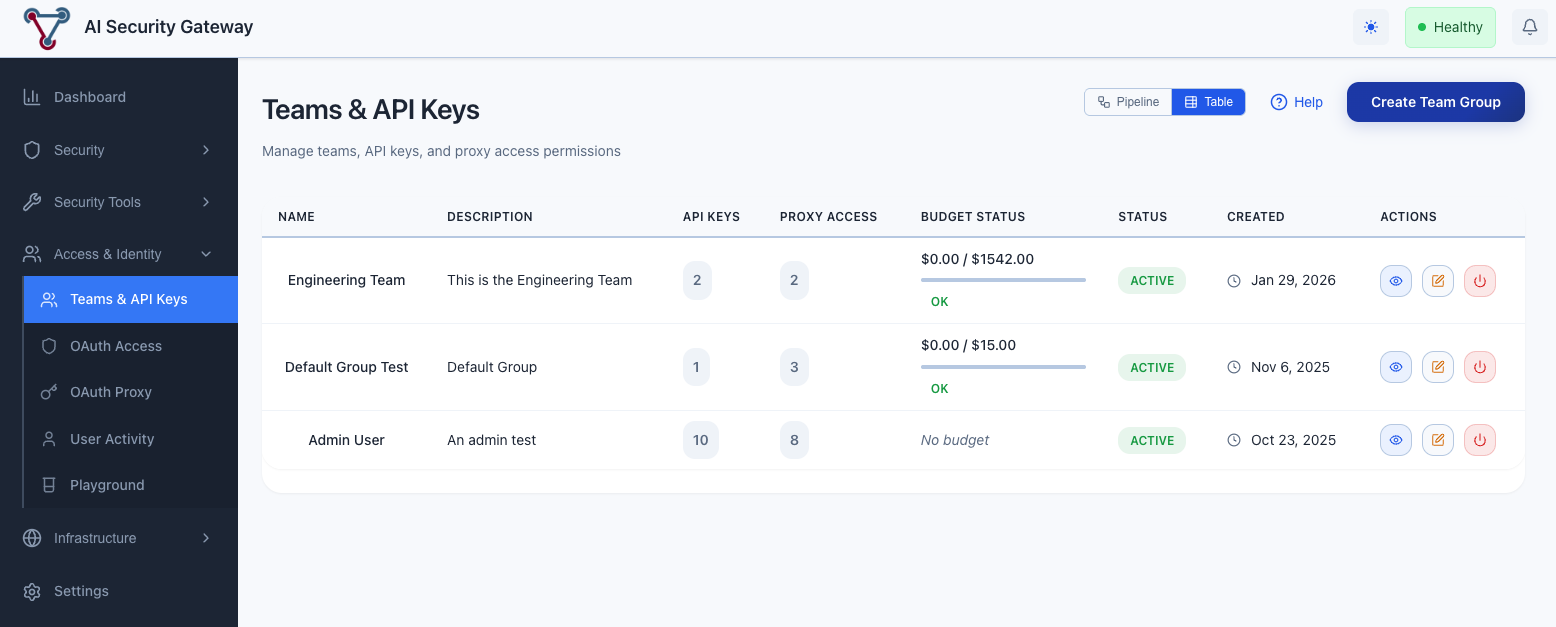
Navigate to Access & Identity → Teams & API Keys.
This page has two view modes — Pipeline and Table — toggled via the button group in the top-right header. Pipeline mode provides a visual flow of how teams connect to proxies, agents, and tool permissions. Table mode gives a traditional list view for bulk management.
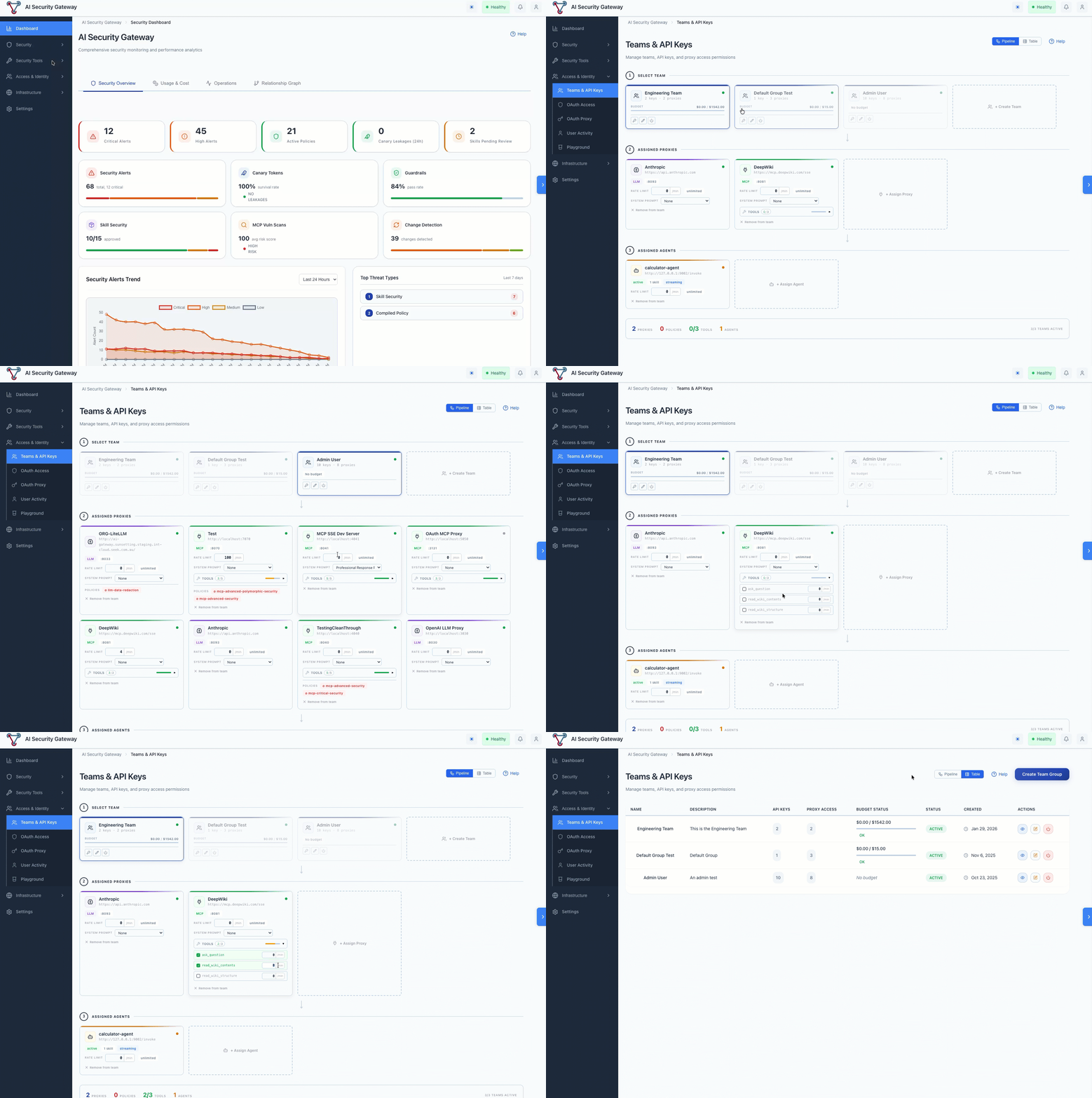
To create a new team, switch to Table mode and click Create Team Group:
OAuth Access can also be applied to any of the proxies once its setup — see the OAuth Access page (also under Access & Identity) which has its own Pipeline / Table toggle for managing OAuth providers, group assignment rules, users, and per-user tool permission overrides.
Example: Engineering Team
Group Name: Engineering Team
Description: Engineers with production access
Active: ✓ Enabled (by default)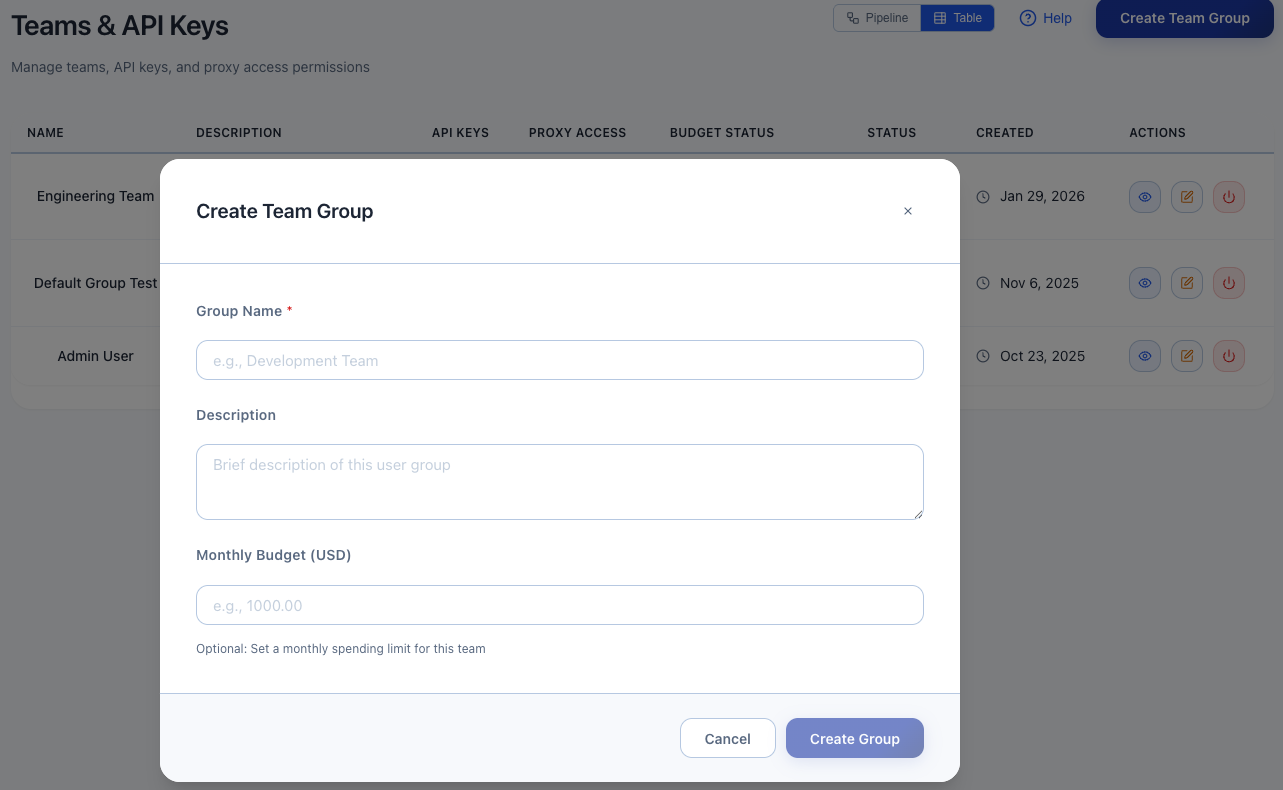
Click Create Group. Repeat for other teams or as you wish:
- QA Team (testers)
- DevOps Team (limited budget)
- Contractors (limited access with strict rate limits)
For each group create a new API Key.
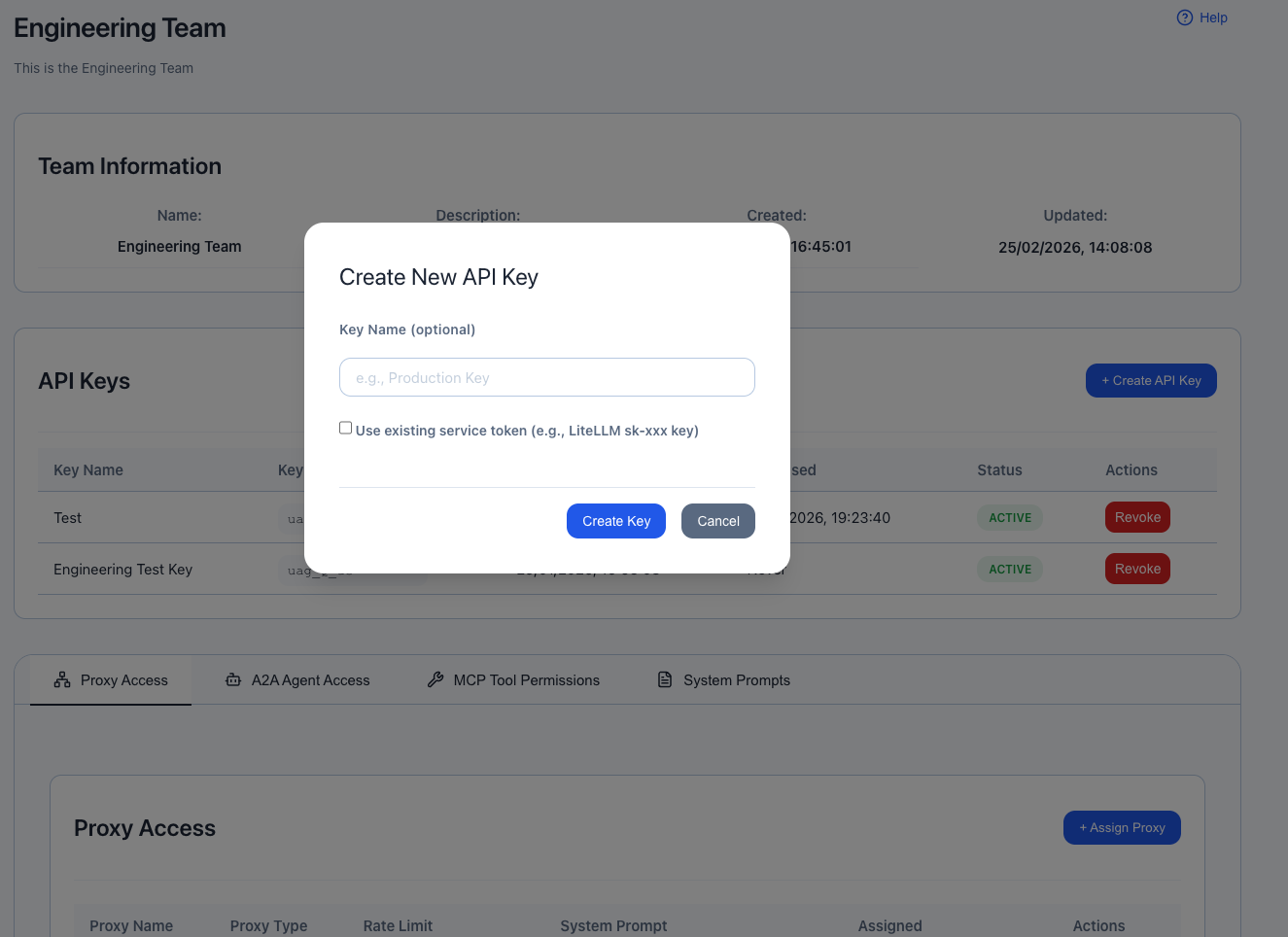
Record API key - Required to access assigned proxies 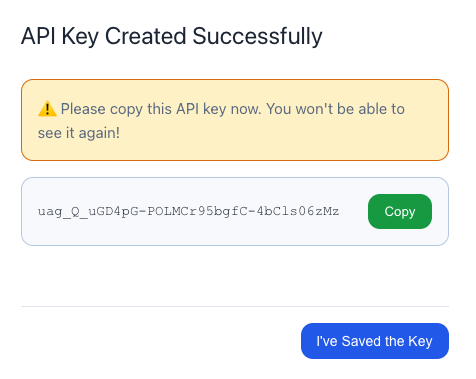
Step 3: Create Proxy Instances
Navigate to Infrastructure → Proxy Management → Create Proxy:
Example 1: DeepWiki MCP Proxy
Name: DeepWiki MCP Proxy
Type: MCP
Target URL: https://mcp.deepwiki.com/sse
Listen Port: 8081
Transport: Server-Sent Events (SSE)
Security Policies: (dont select any for now)
Status: ✓ Enabled
Auto-start: ✓ Enabled
Enable audit logs: ✓ Enabled
Scroll to bottom of form Click Create Proxy → Start Proxy
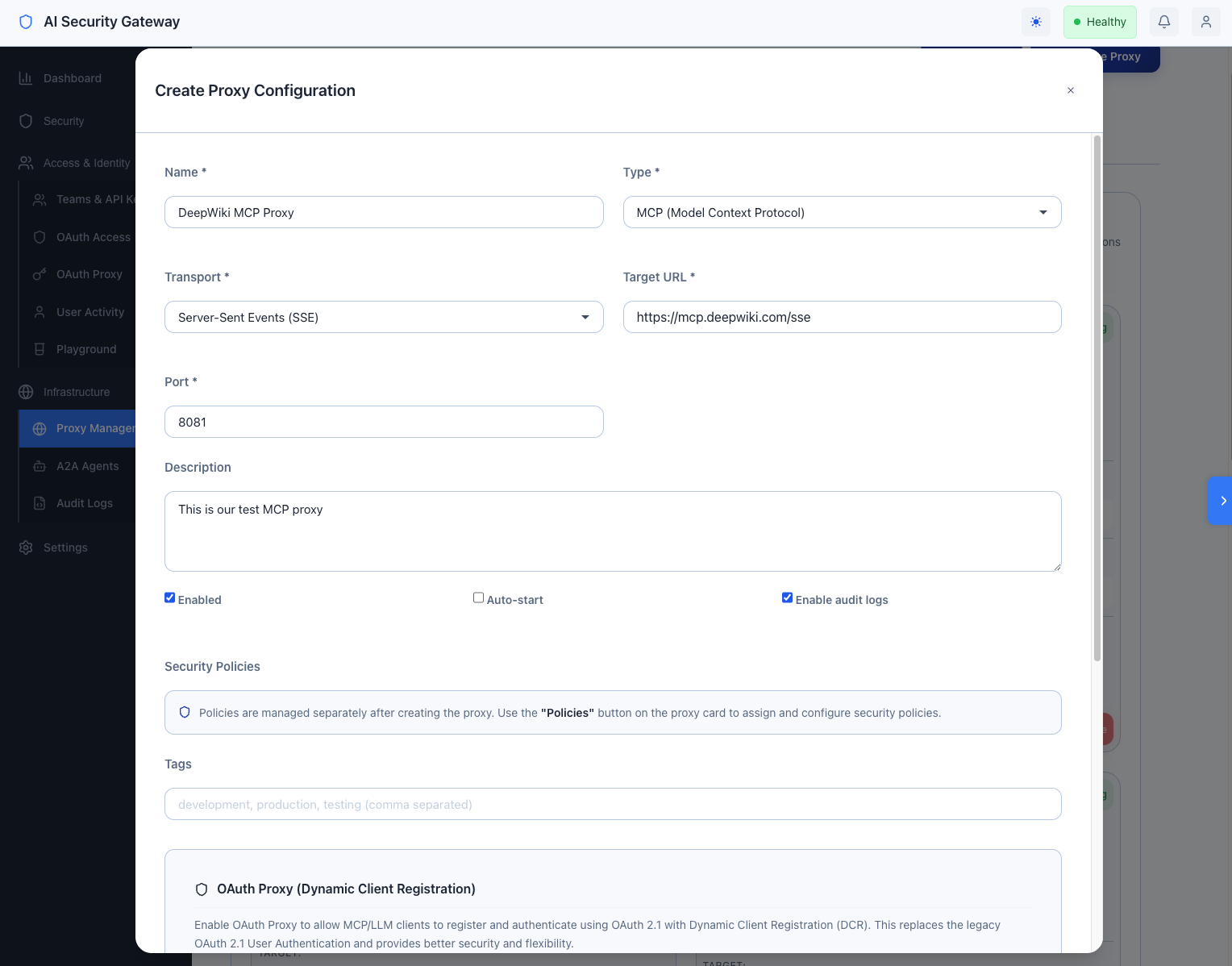
Example 2: Anthropic Claude LLM Proxy
Name: Anthropic Claude LLM Proxy
Type: LLM
Target URL: https://api.anthropic.com
Listen Port: 8082
Transport: HTTP/HTTPS
Security Policies: standard-security (examples)
Status: ✓ Enabled
Auto-start: ✓ Enabled
Enable audit logs: ✓ Enabled
Authentication Type: API Key
Provider: Anthropic Claude
API Key: ******* (API key will be encrypted at rest)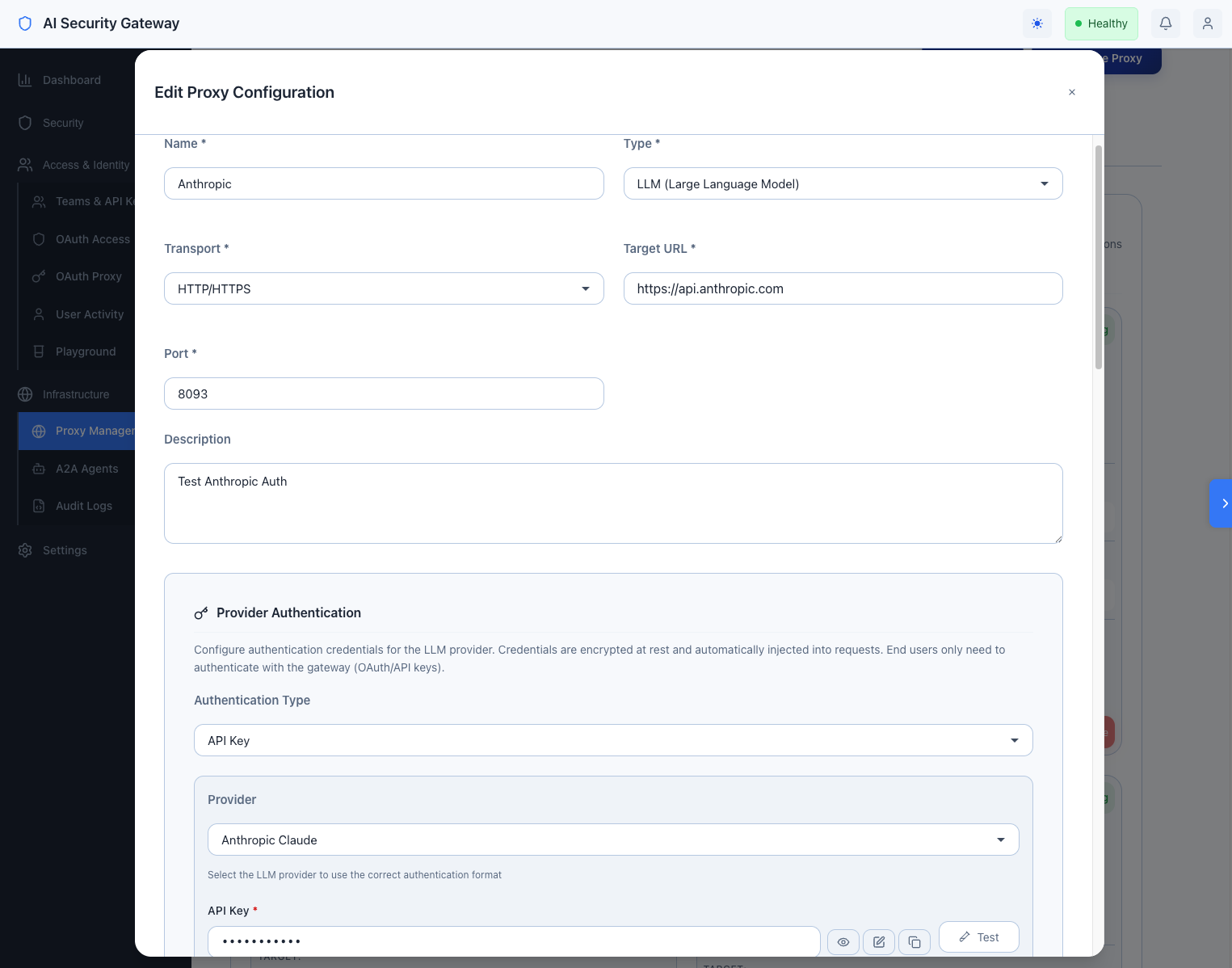 Figure 2: Create an LLM Proxy to Anthropic
Step 4: Assign Proxy Access to Groups
You can assign proxies to teams from either view mode:
Pipeline mode (recommended): Navigate to Teams & API Keys, select a team card in the Teams section, then use the Gateway (MCP/LLM Proxies) section to assign proxies and set rate limits directly in the flow.
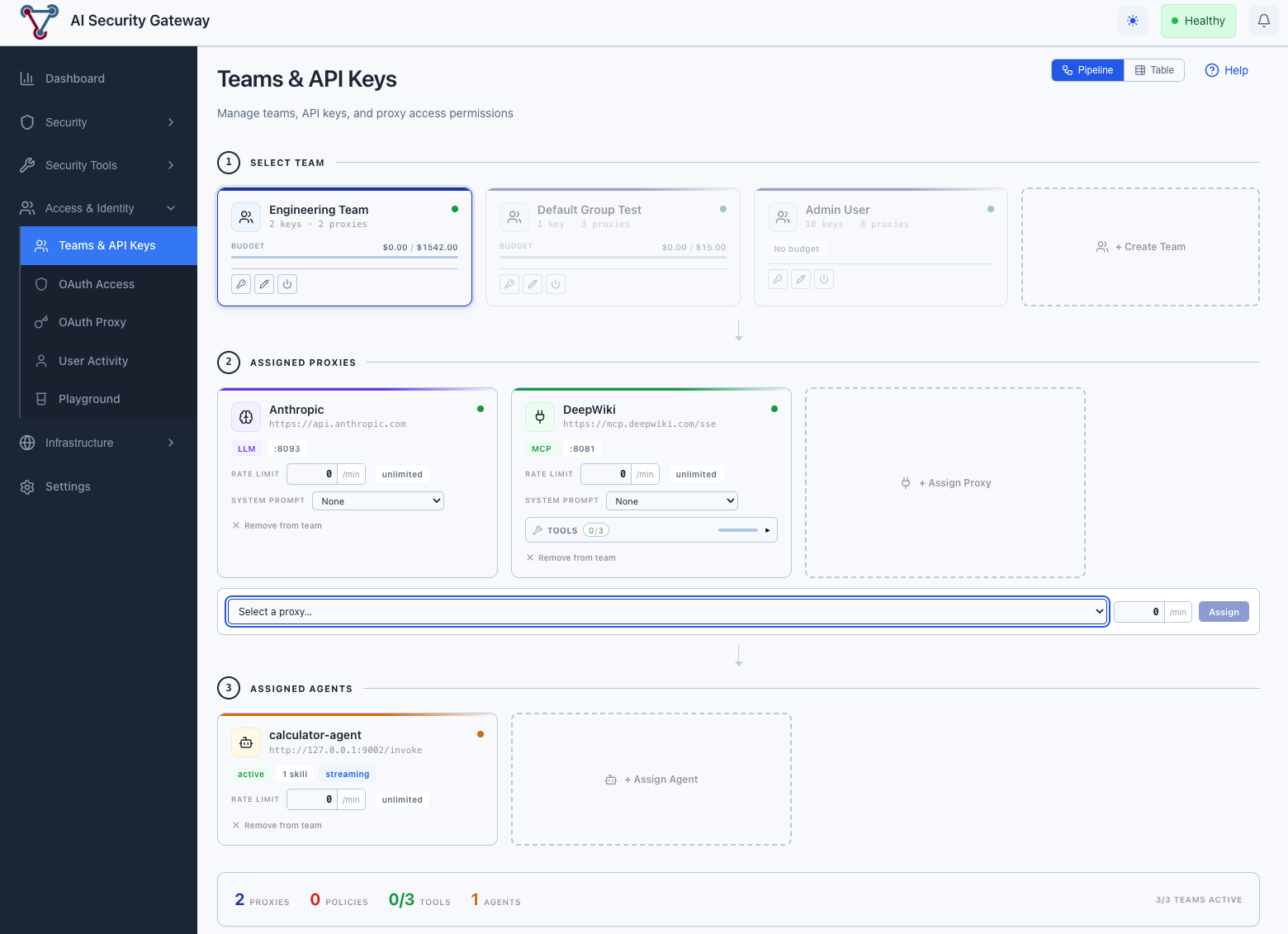
Table mode: Navigate to Teams & API Keys → switch to Table → click a team row → Proxy Access → + Assign Proxy.
Proxy: DeepWiki MCP Proxy
Rate Limit: 100 requests/minute
Active: ✓ Enabled (default)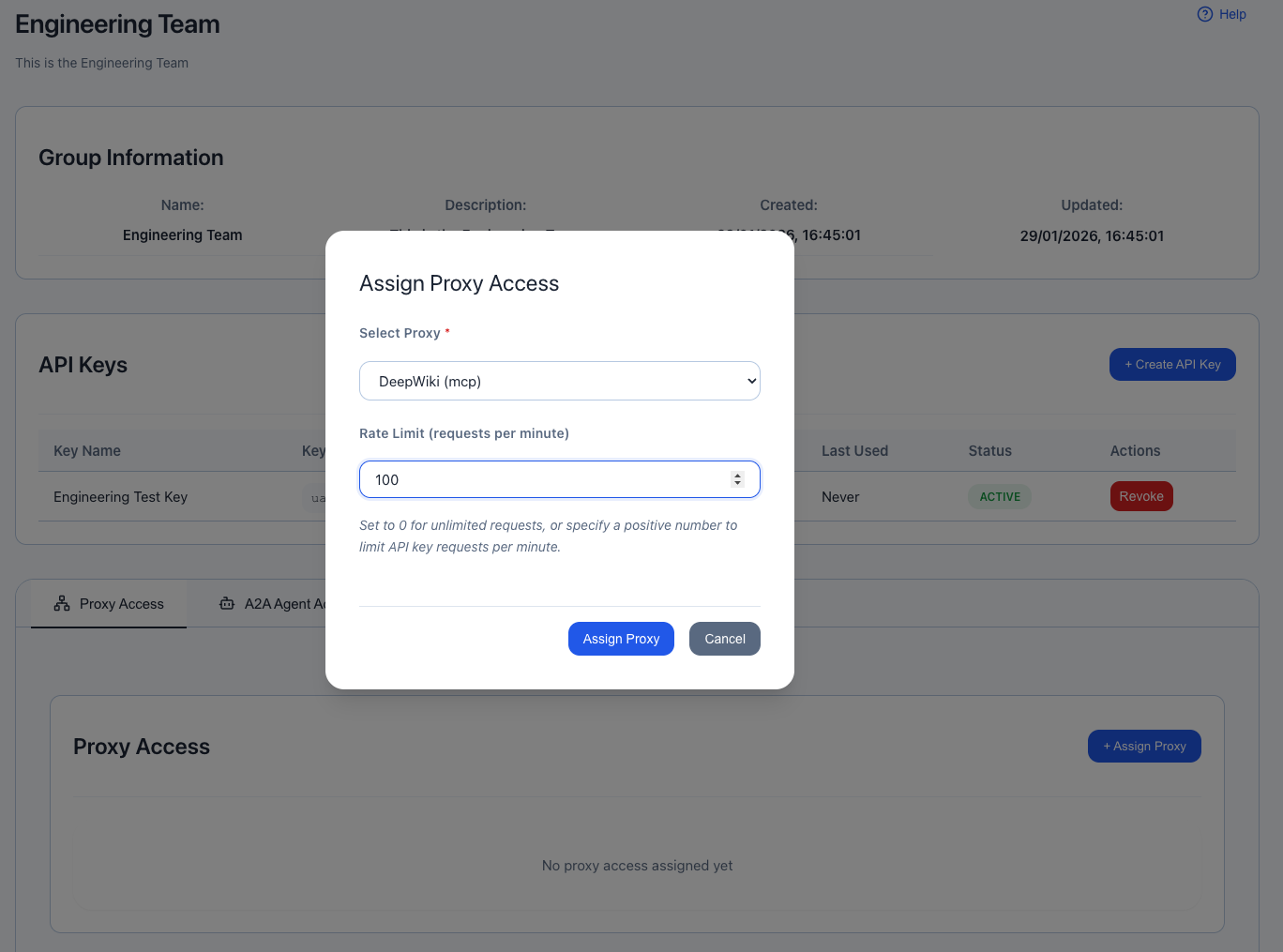
Repeat for other group-proxy combinations:
- QA Team → DeepWiki MCP Proxy
- DevOps Team → All Proxies
- Contractors → Development LLM Proxy only
Step 5: Verify Proxy and API Key Setup
Run a quick curl command with your API key to the MCP proxy:
- DeepWiki Connect Test via Proxy:
curl -X POST http://localhost:8081/sse/message \
  -H "Authorization: Bearer <TEAM_API_KEY_HERE>" \
  -H "Content-Type: application/json" \
  -d '{
  "method": "notifications/initialized",
  "jsonrpc": "2.0"
  }'
Expected: Missing sessionId. Expected POST to /sse to initiate new one
- Check Logs:
You should find logs on the AI Security Platform under the User Activity or Audit Logs section:
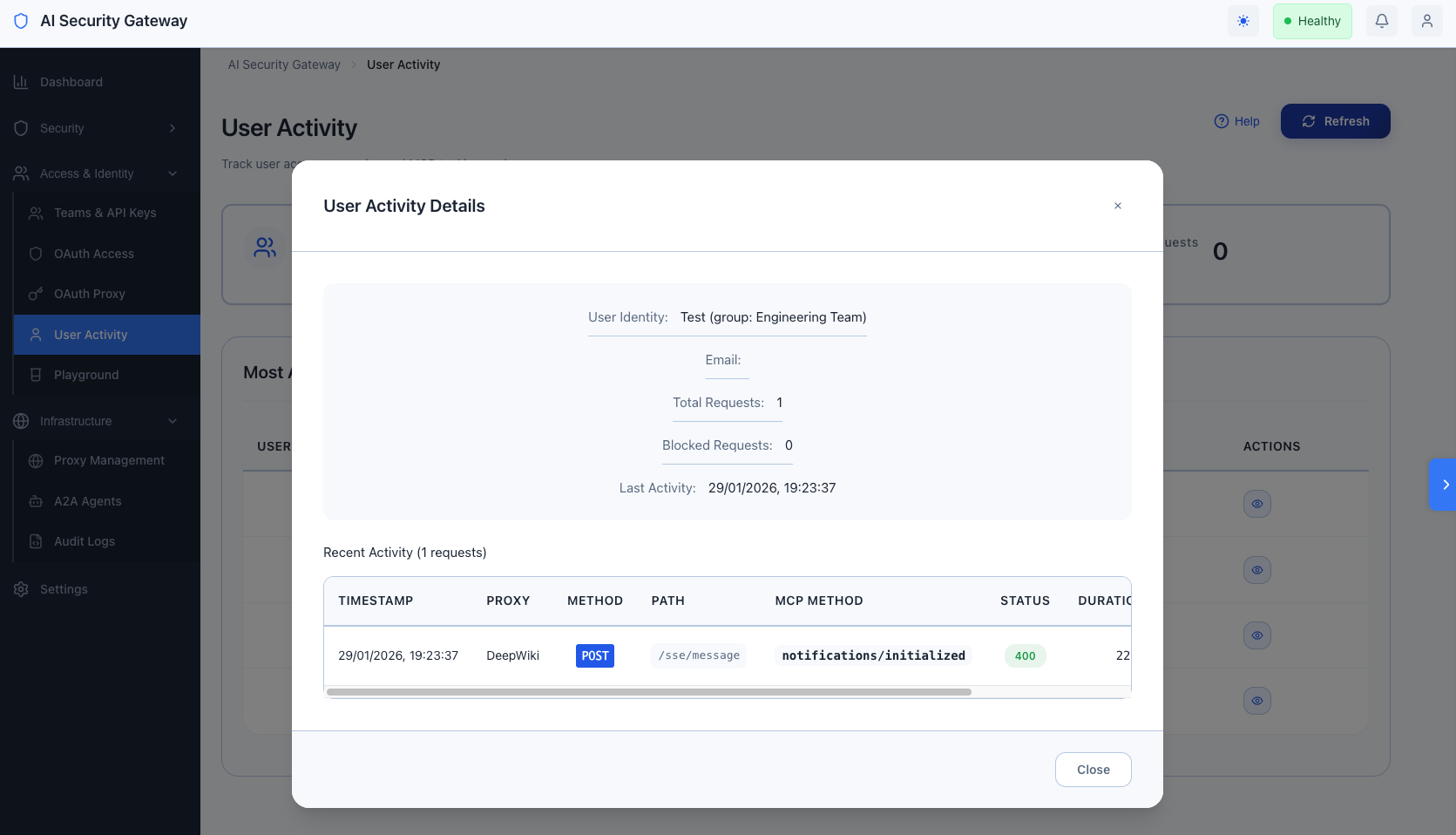
This is a pretty good indication that the proxy is running,
Security Hardening Checklist
Essential Security Controls
- [ ] Change Default Admin Password (Settings → Admin Users)
- [ ] Enable HTTPS/TLS (use reverse proxy like nginx with Let's Encrypt)
- [ ] Configure CORS Allowed Origins (Environment:
ALLOWED_ORIGINS→ whitelist specific domains) - [ ] Set Strong JWT Secret (Environment:
JWT_SECRETwith 64+ random chars viaopenssl rand -hex 32) - [ ] Set Strong Encryption Key (Environment:
ENCRYPTION_KEYwith 32+ random chars viaopenssl rand -base64 32) - [ ] Enable Rate Limiting (per-user and global limits configured)
- [ ] Apply Critical Security Policies (all proxies use
critical-security.json) - [ ] Enable Audit Logging (Settings → Audit → Enable with retention policy)
- [ ] Configure Session Timeout (Settings → Auth → Session: 24 hours max)
- [ ] Enable MFA for Admin Users (Settings → Admin Users → Require MFA)
- [ ] Restrict Admin API Access (firewall rules, VPN-only access)
Quick Start Network Security
- [ ] Use Reverse Proxy (nginx/Traefik with TLS termination)
- [ ] Configure Firewall Rules (allow only required ports)
- [ ] Enable Fail2Ban (block brute-force login attempts)
- [ ] Use Private Networks (proxies on internal network, not public)
- [ ] VPN for Admin Access (require VPN for admin endpoints)
- [ ] DDoS Protection (Cloudflare, AWS Shield, rate limiting)
OAuth Security
- [ ] Verify OAuth Callback URLs (exact match, no wildcards)
- [ ] Use State Parameter (CSRF protection enabled by default)
- [ ] Validate JWT Signatures (verify issuer, audience, expiration)
- [ ] Rotate OAuth Secrets (every 90 days minimum)
- [ ] Audit OAuth Permissions (minimal scopes required)
- [ ] Monitor Failed Logins (alert on repeated failures)
Quick Start Data Protection
- [ ] Encrypt Database (SQLite encryption at rest)
- [ ] Secure Environment Variables (use secrets management: Vault, AWS Secrets Manager)
- [ ] Sanitize Logs (no sensitive data in log files)
- [ ] Regular Backups (automated daily backups with encryption)
- [ ] Backup Retention Policy (30 days minimum, offsite storage)
- [ ] Test Backup Restoration (quarterly disaster recovery drills)
Compliance & Auditing
- [ ] Enable Audit Logs (all user actions logged)
- [ ] Configure Log Retention (1 year minimum for compliance)
- [ ] SIEM Integration (forward logs to Splunk/ELK)
- [ ] Regular Security Scans (weekly vulnerability scans)
- [ ] Penetration Testing (annual third-party testing)
- [ ] Compliance Reviews (SOC 2, GDPR, HIPAA as required)
Troubleshooting Quick Reference
Issue: Quick Start Proxy Won't Start
Symptoms: Proxy status shows "stopped" or "error", won't start via UI.
Diagnosis:
# Check proxy logs
curl http://localhost:8080/api/v1/proxies/{id}/logs | jq '.data[] | select(.level == "ERROR")'

# Check port availability
netstat -an | grep <proxy-port>

# Check target connectivity
curl -v <target-url>
Common Fixes:
- Port already in use → Change proxy listen port
- Target unreachable → Verify target URL, network connectivity
- Invalid security policy → Check policy JSON syntax
- Missing transport support → Verify MCP server supports WebSocket/SSE
Issue: Quick Start OAuth Login Fails
Symptoms: "Authentication failed" error, user redirected back to login.
Diagnosis:
# Check OAuth provider configuration
curl http://localhost:8080/api/v1/admin/oauth-providers | jq

# Test OAuth callback URL
curl -v https://your-domain.com/oauth/callback

# Check recent OAuth errors
grep "OAuth" logs/unified-admin.log | tail -n 50
Common Fixes:
- Callback URL mismatch → Update callback URL in OAuth provider settings (must match exactly)
- Invalid client secret → Re-generate secret in OAuth provider, update in Unify Gateway
- Scope issues → Verify required scopes enabled in OAuth app
- Domain restrictions → Check HD parameter (Google) or allowed domains
Issue: User Can't Access Proxy
Symptoms: 403 Forbidden or "Access Denied" when user tries to access proxy.
Diagnosis:
# Check user's group assignment
curl http://localhost:8080/api/v1/oauth/users/identity/<email> | jq

# Check group's proxy access
curl http://localhost:8080/api/v1/user-groups/{id}/proxies | jq

# Test access directly
curl -X POST http://localhost:8080/api/v1/admin/proxies/{id}/oauth/test-access \
  -H "Content-Type: application/json" \
  -d '{"user_identity": "<email>"}' | jq
Common Fixes:
- User not in group → Manually assign to correct group
- Group doesn't have proxy access → Add proxy access to group
- User inactive → Reactivate user account
- Proxy OAuth mode = "Deny All" → Change to "Group Members Only"
- Group assignment rules not matching → Check rule regex patterns
Issue: Rate Limit Too Restrictive
Symptoms: Users hitting rate limits frequently, "Rate limit exceeded" errors.
Diagnosis:
# Check rate limit hits
curl "http://localhost:8080/api/v1/oauth/analytics/access?time_range=24h" | jq '.data.rate_limited'

# Check per-user limits
curl http://localhost:8080/api/v1/admin/proxies/{id}/oauth | jq '.data.oauth_rate_limit_per_user'

# Check group-level limits
curl http://localhost:8080/api/v1/user-groups/{id}/proxies | jq '.data[] | {proxy, rate_limit}'
Common Fixes:
- Increase proxy-level rate limit (OAuth config)
- Increase group-level rate limit (proxy access settings)
- Create separate group with higher limits for power users
- Review if limits are appropriate for use case
Issue: Security Alerts Overwhelming
Symptoms: Thousands of alerts, hard to identify real threats.
Diagnosis:
# Check alert distribution
curl "http://localhost:8080/api/v1/system/alerts?hours=24" | jq '.data | group_by(.severity) | map({severity: .[0].severity, count: length})'

# Check most common alert types
curl "http://localhost:8080/api/v1/system/alerts?hours=24" | jq '.data | group_by(.policy_name) | map({policy: .[0].policy_name, count: length})'
Common Fixes:
- Adjust policy severity levels (edit
policies/*.json) - Disable noisy rules (set
enabled: falsefor specific patterns) - Use more specific regex patterns (reduce false positives)
- Increase alert threshold (require multiple matches before alerting)
- Configure alert deduplication (Settings → Alerts)
Issue: Database Growing Too Large
Symptoms: Slow queries, large disk usage, performance degradation.
Diagnosis:
# Check database size
ls -lh data/unified.db

# Check record counts
sqlite3 data/unified.db "SELECT 'alerts', COUNT(*) FROM alerts UNION SELECT 'request_logs', COUNT(*) FROM request_logs UNION SELECT 'token_usage', COUNT(*) FROM token_usage;"

# Check oldest records
sqlite3 data/unified.db "SELECT MIN(created_at) FROM request_logs;"
Common Fixes:
- Enable automatic cleanup (Settings → Database → Auto-cleanup: 30 days)
- Manually delete old records:bash
sqlite3 data/unified.db "DELETE FROM request_logs WHERE created_at < datetime('now', '-30 days');" sqlite3 data/unified.db "DELETE FROM alerts WHERE created_at < datetime('now', '-90 days');" - Archive old data:bash
sqlite3 data/unified.db ".backup 'archives/archive-$(date +%Y%m%d).db'" # Then delete old records from main DB - Optimize database:bash
sqlite3 data/unified.db "VACUUM;"
Issue: Quick Start High Memory Usage
Symptoms: Server using excessive RAM, OOM kills, slow response times.
Diagnosis:
# Check process memory
ps aux | grep unified-admin

# Check Go memory stats (if metrics enabled)
curl http://localhost:8080/api/v1/health | jq '.memory'

# Check number of active connections
netstat -an | grep ESTABLISHED | wc -l
Common Fixes:
- Reduce concurrent proxy instances (stop unused proxies)
- Decrease request log retention (shorter TTL)
- Optimize policy regex patterns (compiled patterns cached in memory)
- Increase server RAM (if justified by traffic)
- Restart service periodically (cron job for weekly restart)
Getting Quick Start Help
Community Resources
- GitHub Issues: https://github.com/syphon1c/ai-security-gateway/issues
- Discussions: https://github.com/syphon1c/ai-security-gateway/discussions
- Documentation: https://github.com/syphon1c/ai-security-gateway/tree/main/docs
Reporting Security Issues
DO NOT file public GitHub issues for security vulnerabilities or do, but lets try be responsible.
Secure Disclosure:
- Email: gareth.m.phillips@gmail.com
End of Admin Quick Start Guide