Budget Management Guide
Budget Management Overview
The AI Security Gateway provides comprehensive budget management features to control LLM API costs. Budget limits can be set at multiple levels (proxy, user, user group, organization) with automated enforcement, warning notifications, and detailed cost tracking.
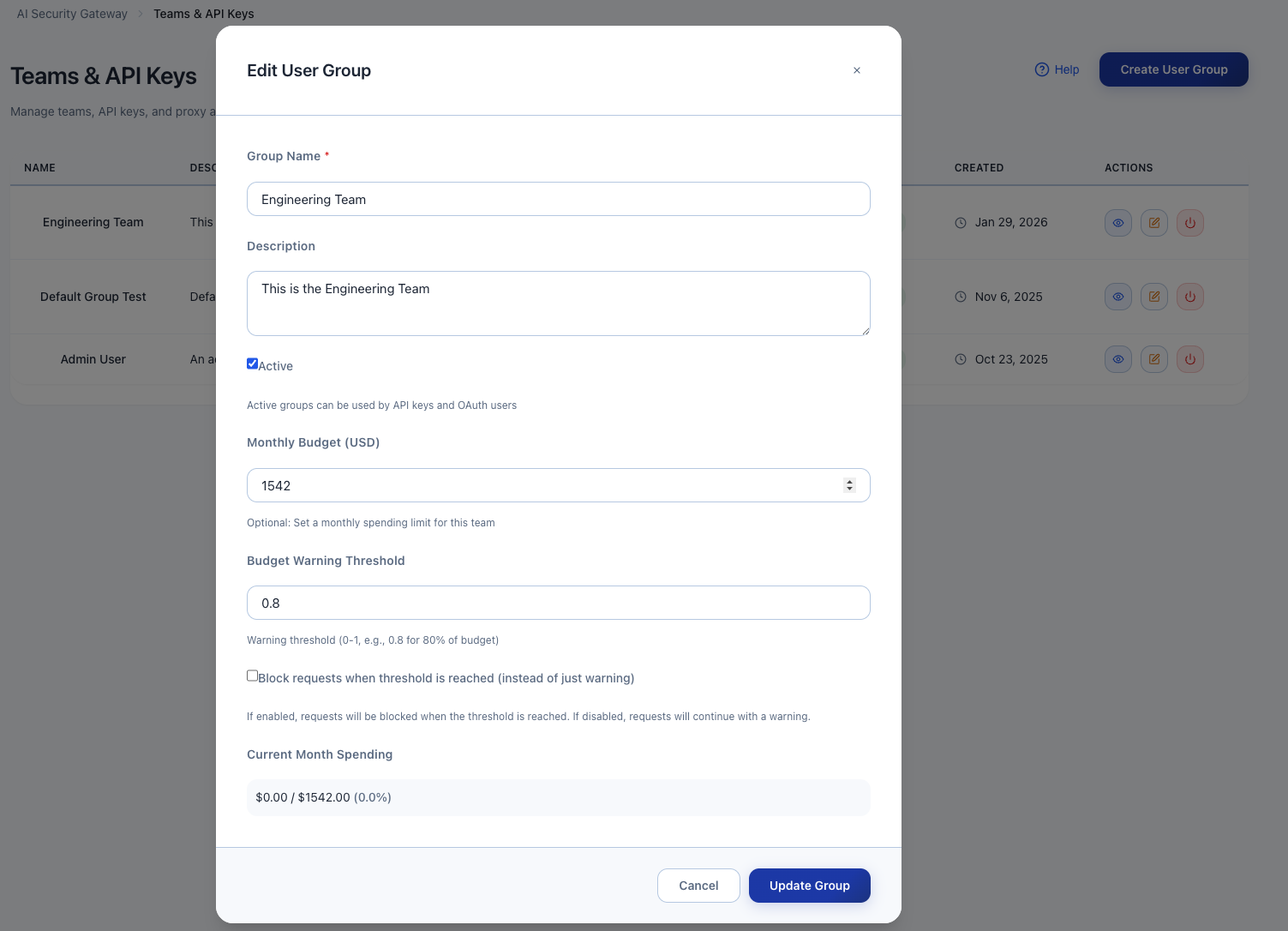
Key Features
- Monthly Budgets: Set monthly spending limits with automatic reset
- Multi-Level Budgets: Configure budgets for proxies, users, user groups, and organization
- Warning Thresholds: Email notifications at 50%, 75%, 90%, and 100% usage
- Automatic Enforcement: Block requests when budget is exceeded
- Cost Attribution: Track costs per user, model, and proxy
- Real-Time Tracking: Monitor spending in real-time with WebSocket updates
- Budget Reset: Automatic monthly reset or manual reset on-demand
- Historical Reports: View budget usage trends and patterns
Budget Hierarchy
Budgets are enforced in a hierarchical order:
- Organization Budget - Total spending limit for entire organization (Planned and still working on)
- User Group Budget - Spending limit for specific user groups (e.g., "Engineering Team")
- User Budget - Individual user spending limit (Planned and still working on)
- Proxy Budget - Spending limit for specific LLM proxy (Planned and still working on)
Enforcement Logic: A request is allowed only if ALL applicable budgets have remaining quota. If any budget is exceeded, the request is blocked.
Example:
- Organization budget: $10,000/month
- Engineering team budget: $3,000/month
- John Doe's user budget: $500/month
- OpenAI proxy budget: $5,000/month
When John (Engineering team) makes a request through the OpenAI proxy, ALL four budgets are checked. The request is blocked if ANY budget is exceeded.
Budget Enforcement
How Budgets Are Enforced
- Pre-Request Check: Before proxying an LLM request, the Gateway checks all applicable budgets
- Budget Hierarchy: Organization → User Group → User → Proxy budgets are all checked
- Cost Estimation: Request is estimated based on model pricing (prompt tokens × input rate + completion tokens × output rate)
- Blocking Decision: If ANY budget would be exceeded, the request is blocked
- Usage Recording: Successful requests update all applicable budget usage counters
Cost Calculation
The Gateway uses model-specific pricing to estimate costs:
| Model | Input (per 1M tokens) | Output (per 1M tokens) |
|---|---|---|
| gpt-4o | $2.50 | $10.00 |
| gpt-4o-mini | $0.15 | $0.60 |
| gpt-4-turbo | $10.00 | $30.00 |
| claude-3-5-sonnet | $3.00 | $15.00 |
| claude-3-5-haiku | $0.80 | $4.00 |
Custom Pricing: Add custom model pricing via Settings → System → Model Pricing.
Blocked Request Response
When a budget is exceeded, the Gateway returns:
{
  "error": {
    "message": "Budget limit exceeded",
    "type": "budget_exceeded",
    "code": 429,
    "details": {
      "budget_type": "user",
      "budget_limit": 500.00,
      "current_usage": 498.23,
      "estimated_cost": 2.45,
      "reset_date": "2026-02-01T00:00:00Z"
    }
  }
}
Get Budget Status via API
# Get organization budget status
curl -X GET http://localhost:8080/api/v1/budgets/organization/status \
  -H "Authorization: Bearer YOUR_TOKEN"

# Get user budget status
curl -X GET http://localhost:8080/api/v1/budgets/users/1/status \
  -H "Authorization: Bearer YOUR_TOKEN"

# Get usage breakdown
curl -X GET http://localhost:8080/api/v1/budgets/organization/breakdown?period=this_month \
  -H "Authorization: Bearer YOUR_TOKEN"
Budget Alerts
Warning Thresholds
Budget warnings are sent when usage reaches configured thresholds:
- 50% Warning: Early notification to monitor usage
- 75% Warning: Increased awareness of budget consumption
- 90% Warning: Critical warning - budget nearly exhausted
- 100% Alert: Budget exceeded - requests are now blocked
Email Notifications (WIP)
Warning emails include:
- Budget Type: Which budget reached threshold (org, user group, user, proxy)
- Current Usage: Total spending this month
- Remaining Budget: Amount remaining
- Threshold: Which threshold was reached (50%, 75%, 90%, 100%)
- Top Consumers: Users/models consuming the most budget
- Recommendations: Suggested actions to manage costs
- Reset Date: When budget will automatically reset
Example Email:
Subject: ⚠️ Budget Alert: 75% of Organization Budget Consumed

Your organization has reached 75% of the monthly budget limit.

Budget Details:
- Monthly Limit: $10,000.00
- Current Usage: $7,523.45
- Remaining: $2,476.55
- Reset Date: 2026-02-01

Top Consumers:
1. gpt-4o: $3,245.12 (43%)
2. claude-3-5-sonnet: $2,987.54 (40%)
3. gpt-4-turbo: $1,290.79 (17%)

Recommendations:
- Review high-cost model usage
- Consider switching to more cost-effective models
- Set user-level budgets to distribute costs

View Details: https://gateway.example.com/budgets
Configuring Notifications
- Navigate to Operations → Budget Management
- Select budget (organization, user group, user, or proxy)
- Click Edit Budget
- Update Notification Emails field
- Toggle warning thresholds (50%, 75%, 90%, 100%)
- Click Save Budget
Budget Reset (WIP)
Automatic Monthly Reset
Budgets automatically reset on the first day of each month at 00:00 UTC.
Reset Behavior:
- Usage Counter: Reset to $0.00
- Budget Limit: Unchanged (carries over)
- Warning Thresholds: Re-enabled
- Blocked Requests: Automatically unblocked
Manual Budget Reset
Administrators can manually reset budgets at any time.
Via Web Interface
- Navigate to Operations → Budget Management
- Select budget to reset
- Click Reset Budget (⟲ icon)
- Confirm reset
- Budget usage immediately resets to $0.00
Via API
# Reset organization budget
curl -X POST http://localhost:8080/api/v1/budgets/organization/reset \
  -H "Authorization: Bearer YOUR_TOKEN"

# Reset user budget
curl -X POST http://localhost:8080/api/v1/budgets/users/1/reset \
  -H "Authorization: Bearer YOUR_TOKEN"

# Reset all budgets (requires admin)
curl -X POST http://localhost:8080/api/v1/budgets/reset-all \
-H "Authorization: Bearer YOUR_TOKEN"Warning: Manual reset clears usage history for the current period. Use with caution.
Budget Reports (WIP - not implemented yet)
Generating Reports
Generate Budget Report via Web Interface
- Navigate to Operations → Budget Management → Reports
- Configure report parameters:
- Report Type: Summary, Detailed, Cost Breakdown
- Time Period: This Month, Last Month, Last 90 Days, Custom
- Budget Scope: Organization, User Group, User, Proxy, All
- Format: PDF, CSV, JSON
- Click Generate Report
- Download report file
Generate Budget Report via API
# Generate monthly summary report
curl -X GET "http://localhost:8080/api/v1/budgets/reports/summary?period=this_month&format=pdf" \
  -H "Authorization: Bearer YOUR_TOKEN" \
  -o budget-report.pdf

# Generate detailed cost breakdown (CSV)
curl -X GET "http://localhost:8080/api/v1/budgets/reports/breakdown?period=last_month&format=csv" \
  -H "Authorization: Bearer YOUR_TOKEN" \
  -o budget-breakdown.csv
Report Contents
Summary Report includes:
- Total spending for period
- Budget utilization percentage
- Cost breakdown by model
- Cost breakdown by user
- Cost breakdown by proxy
- Top 10 most expensive requests
- Budget alert history
Detailed Report includes all summary data plus:
- Individual request details
- Token usage per request
- Cost per request
- User attribution
- Timestamp and duration
- Model and parameters used
Cost Breakdown Report includes:
- Hourly/daily/monthly aggregations
- Cost trends and forecasts
- Budget vs. actual spending
- Efficiency metrics
- Cost optimization recommendations
Budget Best Practices
Setting Appropriate Limits
- Start Conservative: Begin with lower budgets and increase as needed
- Monitor Usage: Review first month's usage to establish baseline
- Add Buffer: Set budgets 20-30% above expected usage
- Tiered Approach: Use hierarchy (org > group > user) for granular control
Cost Optimization
- Use Cost-Effective Models: Switch to mini/haiku models for simple tasks
- Implement Caching: Use semantic caching to reduce redundant requests
- Optimize Prompts: Reduce prompt length without sacrificing quality
- Set Max Tokens: Limit completion length to prevent runaway costs
- User Education: Train users on cost-conscious LLM usage
Monitoring and Alerts
- Enable All Thresholds: Configure 50%, 75%, 90%, 100% alerts
- Multiple Recipients: Send alerts to team leads, finance, and admins
- Regular Reviews: Weekly review of top consumers
- Trend Analysis: Monitor month-over-month spending trends
- Anomaly Detection: Investigate sudden spending spikes
Budget Troubleshooting
Budget Not Enforcing
Problem: Requests continue even after budget is exceeded.
Solution:
- Verify budget is Enabled (toggle is ON)
- Check Block at 100% is enabled
- Confirm user/proxy is within budget scope
- Review audit logs for budget check results:bash
curl -X GET "http://localhost:8080/api/v1/audit/logs?event_type=budget_check" \ -H "Authorization: Bearer YOUR_TOKEN" - Verify model pricing is configured (missing pricing = $0 cost = no enforcement)
Incorrect Cost Calculations
Problem: Reported costs don't match actual LLM provider bills.
Solution:
- Verify model pricing is up-to-date: Settings → System → Model Pricing
- Check for custom models with missing pricing
- Enable Langfuse Integration for accurate token tracking
- Compare token counts with provider dashboard
- Review request logs for discrepancies:bash
curl -X GET "http://localhost:8080/api/v1/proxies/1/logs?include_tokens=true" \
  -H "Authorization: Bearer YOUR_TOKEN"
Missing Budget Alerts
Problem: Not receiving budget warning emails.
Solution:
- Verify email integration is configured: Settings → Integrations → Email
- Test email with Send Test Email button
- Check spam/junk folders
- Verify notification emails are correct in budget configuration
- Check budget warning thresholds are enabled
- Review audit logs for email delivery status:bash
curl -X GET "http://localhost:8080/api/v1/audit/logs?event_type=email_sent" \
  -H "Authorization: Bearer YOUR_TOKEN"
Budget Not Resetting
Problem: Budget usage didn't reset on the first of the month.
Solution:
- Verify Gateway was running at midnight UTC on the 1st
- Check system logs for reset job execution:bash
journalctl -u ai-security-gateway | grep "budget reset" - Manually trigger reset via API:bash
curl -X POST http://localhost:8080/api/v1/budgets/organization/reset \ -H "Authorization: Bearer YOUR_TOKEN" - Check system timezone is set to UTC
- Review cron job configuration if using systemd timer
Hierarchical Budget Conflicts
Problem: Unable to determine which budget is blocking requests.
Solution:
- Enable verbose logging: Settings → System → Log Level = Debug
- Review request logs with budget check details:bash
curl -X GET "http://localhost:8080/api/v1/proxies/1/logs?include_budget_check=true" \ -H "Authorization: Bearer YOUR_TOKEN" - Check budget status for all applicable levels:
- Organization:
/api/v1/budgets/organization/status - User Group:
/api/v1/budgets/user-groups/{id}/status - User:
/api/v1/budgets/users/{id}/status - Proxy:
/api/v1/budgets/proxies/{id}/status
- Organization:
- Look for the first budget with
remaining_budget <= 0
Advanced Features
Budget Forecasting
The Gateway can forecast when budgets will be exceeded based on current usage trends.
Via Web Interface
- Navigate to Operations → Budget Management → Forecasting
- Select budget to forecast
- View forecast chart showing:
- Current usage trend
- Projected spending
- Estimated exhaustion date
- Recommended budget adjustments
- Configure alerts for projected overruns
Get Budget Forecast via API
curl -X GET http://localhost:8080/api/v1/budgets/organization/forecast \
-H "Authorization: Bearer YOUR_TOKEN"Response:
{
  "current_usage": 5234.12,
  "budget_limit": 10000.00,
  "days_remaining": 18,
  "projected_total": 11245.67,
  "projected_overrun": 1245.67,
  "projected_exhaustion_date": "2026-01-24T00:00:00Z",
  "daily_average": 290.78,
  "recommendations": [
    "Current pace will exceed budget by $1,245.67",
    "Consider increasing budget to $12,000/month",
    "Reduce gpt-4-turbo usage by 30% to stay within budget"
  ]
}
Budget Sharing
Allow user groups to share a common budget pool.
- Navigate to Access Control → User Groups
- Select multiple user groups (Ctrl+Click or Cmd+Click)
- Click Share Budget
- Configure shared budget:
- Shared Limit: Total limit for all selected groups
- Allocation: Equal, Weighted, or Custom per group
- Overflow: Allow groups to borrow from others
- Click Create Shared Budget
Budget Rollover
Unused budget can roll over to the next month (up to a maximum).
- Navigate to Operations → Budget Management → Rollover Settings
- Enable Budget Rollover
- Configure:
- Max Rollover: Maximum amount to carry over (e.g., 20% of monthly limit)
- Expiration: How long rollover credit lasts (1-12 months)
- Click Save Settings
Example:
- Monthly budget: $10,000
- Usage in January: $8,000
- Rollover amount: $2,000 (capped at 20% = $2,000)
- February budget: $10,000 + $2,000 = $12,000
Related Budget Documentation
- User Activity Guide - Track user attribution and activity
- Token Usage Tracking - Monitor LLM token consumption
- Settings Guide - Configure email notifications and integrations
- Alert Recording System - Security alerts and notifications